
Best Monitors for Work, Gaming and Eye Comfort
Discover the best monitors for work, gaming and long hours of comfortable use. Whether you need a sharp 4K display, an ultrawide screen for multitasking, or an eye-friendly monitor for productivity, choosing the right model improves focus, reduces strain and upgrades your entire workspace.
Explore monitors designed for office setups, creative work and gaming — with the right balance of resolution, refresh rate and ergonomics.


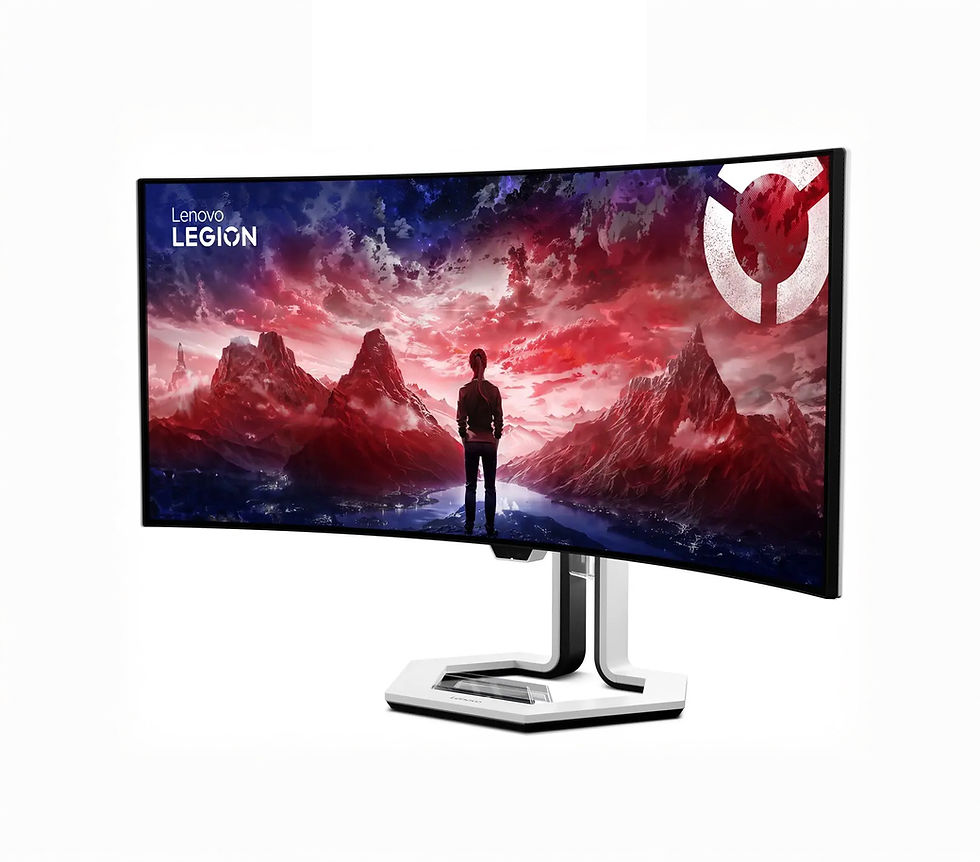


You might like


How to Choose the Right Monitor
Choosing the right monitor can significantly improve your productivity, comfort, and overall viewing experience — whether you’re working, gaming, or creating content. Here are the key things to consider before buying:
1. Screen size & workspace
-
Small desks: 23–27 inches is usually the most comfortable
-
Larger setups: 32–34 inches or ultra-wide models
-
Ultra-wide monitors are great for multitasking and replacing dual-monitor setups
Choose the size that fits your desk and your daily tasks.
2. Resolution & picture clarity
Higher resolution = sharper image and more workspace.
-
Full HD (1080p) – budget-friendly, good for everyday use
-
Quad HD (1440p) – best balance for work + gaming
-
4K (2160p) – ideal for photo/video editing and ultra-detailed visuals
If you spend long hours in front of the screen, choose at least 1440p.
3. Refresh rate & smoothness
The refresh rate determines how smooth motion appears.
-
60 Hz – office work, browsing, productivity
-
120–165 Hz – gaming, video editing, smooth animations
-
240+ Hz – competitive gaming
If you play games even occasionally, a higher refresh rate makes a big difference.
4. Panel type: IPS, VA or TN
-
IPS – best colors & viewing angles; ideal for creative work and everyday use
-
VA – strong contrast; great for movies and dark rooms
-
TN – fastest response times; used mainly for e-sports gaming
Most users will be happiest with IPS.
5. Connectivity & ergonomics
Make sure the monitor fits your setup:
-
HDMI, DisplayPort, USB-C
-
Height adjustment, tilt, swivel
-
VESA mount compatibility
USB-C (with power delivery) is perfect for laptop users — one cable for everything.
6. Eye-comfort features
For long working or gaming sessions, look for:
-
Flicker-free technology
-
Low blue-light mode
-
Anti-glare coating
These features help reduce eye strain and make long days much more comfortable.
Summary
The best monitor is the one that fits your desk, your tasks, and your eyes. Take a moment to consider the size, resolution, refresh rate and panel type — and you’ll notice an immediate upgrade in productivity and viewing comfort.
Explore our selection and find the perfect monitor for your setup.
Best Monitors For Different Use Cases
Choosing the right monitor depends on how you use it every day. Here’s a quick guide:
For office work & productivity
-
24–27” monitors
-
1440p resolution
-
IPS panels for clarity
👉 Ideal for long working hours and reduced eye strain
For gaming
-
144–240 Hz refresh rate
-
Low response time
-
Adaptive sync support
👉 Smooth performance and better responsiveness
For eye comfort & long hours
-
Flicker-free technology
-
Low blue light mode
-
Matte anti-glare coating
👉 Helps reduce fatigue during extended sessions
For multitasking & workflow
-
Ultrawide (34”+) monitors
👉 Replace dual screens and improve efficiency
FAQ – Best Monitors for Work, Gaming and Eye Comfort
1. What monitor size is best for office work?
For most users, 24–27 inch monitors provide the best balance between comfort and workspace.
2. Is 27-inch monitor good for daily use?
Yes, 27” is considered the ideal size for work, gaming and general use, especially with 1440p resolution.
3. What resolution is best for a monitor?
1440p is the best balance for most users, while 4K is ideal for design and detailed work.
4. Do higher refresh rates matter?
Yes. 120Hz or higher improves smoothness, especially for gaming and scrolling-heavy tasks.
5. Which panel type is best?
IPS panels are the most balanced for color accuracy, viewing angles and everyday use.
6. Are monitors compatible with laptops?
Yes, most monitors connect via HDMI, DisplayPort or USB-C.
7. What is the best monitor for eye comfort?
Monitors with flicker-free technology, low blue light and matte coating are best for long sessions.
8. Is ultrawide better than dual monitors?
Ultrawide monitors can replace dual setups and provide a cleaner, more seamless workspace.