
How to Set Up a Laptop With an External Monitor: 7 Mistakes to Avoid

A laptop and an external monitor can make an excellent home-office workstation. You get more screen space for multitasking, easier access to multiple applications and the flexibility to use your laptop as a second display.
But connecting a monitor is only part of the setup.
If your laptop sits too low, your screens are positioned incorrectly or your keyboard is difficult to reach, even an expensive workstation can feel uncomfortable.
The solution often involves a few practical adjustments: positioning your primary monitor correctly, raising your laptop with an adjustable stand and arranging your keyboard, mouse and cables around how you actually work.
In this guide, you'll learn how to set up a laptop with an external monitor, avoid seven common mistakes and choose the right laptop stand and desk accessories for your workspace.
Whether you use a MacBook, Dell, Lenovo, HP or ASUS laptop, these principles can help you build a more organised and comfortable workstation.
Explore laptop stands and desk accessories at Standesk if you're planning to upgrade your current setup.
Quick Answer: What Is the Best Laptop and External Monitor Setup?
For most people using an external monitor as their main screen, the recommended starting arrangement is:
External monitor: Directly in front of your normal working position.
Laptop: Raised on an adjustable stand beside the monitor.
Screen height: The top of each display approximately at eye level or slightly below, with the screens aligned as closely as practical.
Viewing distance: Approximately an arm's length, adjusted for readability and screen size.
Keyboard and mouse: External devices positioned comfortably in front of your primary monitor.
Display mode: Extended desktop rather than mirrored displays when multitasking.
Cables and accessories: Organised so they don't restrict screen positioning or mouse movement.
If you use both screens equally, positioning them closer to the centre of your field of view may be more appropriate.
The important principle is to arrange your desk according to how you work, not simply how a desk setup looks in photographs.
Which Laptop Stand Do You Actually Need?
Before making adjustments, identify which type of laptop stand suits your workstation.
An adjustable laptop riser is useful when you want to keep the laptop screen open as a second display. A vertical holder is more appropriate when you prefer to work from an external monitor with the laptop closed.
Here are five practical options from the Standesk range.
Your setup | Laptop stand to consider | Main advantage |
Everyday home office | NATEC NPL-2271 | Eight height positions |
Flexible dual-screen desk | Unitek OT180SL01 | Height, tilt and 360° rotation |
Hybrid working | DIGITUS Mobile | Foldable, adjustable design |
Laptop + monitor + USB-C devices | Unitek D1109B01 | Integrated USB-C hub |
External monitor with laptop closed | UGREEN 20471B | Vertical, space-saving storage |
For an everyday workstation, the NATEC NPL-2271 Adjustable Metal Laptop Stand supports laptops from 12.1 to 17.3 inches.
If you frequently adjust your screen position or share your laptop display with colleagues, the Unitek OT180SL01 Adjustable Aluminium Laptop Stand offers height and tilt adjustment alongside 360-degree rotation.
For a workstation that also needs additional connections, the Unitek D1109B01 Laptop Stand with USB-C Hub combines adjustable laptop positioning with HDMI, Ethernet and USB-C connectivity.
We'll compare these options in more detail below.
First, let's fix the seven mistakes that commonly make laptop-and-monitor setups less practical.
Mistake 1: Placing Your Laptop Too Low Beside the External Monitor
One of the most common laptop workstation layouts looks like this:
A 27-inch monitor sits directly in front of you, while your laptop rests flat on the desk beside it.
The external monitor may be at a comfortable viewing height, but the laptop screen sits much lower.
Every time you switch to the laptop display, you're looking down.
This becomes particularly noticeable if the laptop is used frequently for email, messaging, reference documents or video meetings.
How to Position Your Laptop Screen Correctly
A useful starting point is to position the top of your laptop display approximately at eye level or slightly below, while keeping it reasonably aligned with your external monitor.
You don't need both screens to be exactly the same height or size. The aim is to make moving your gaze between them feel natural.
An adjustable laptop stand can help by allowing you to change the height and viewing angle independently of the desk surface.
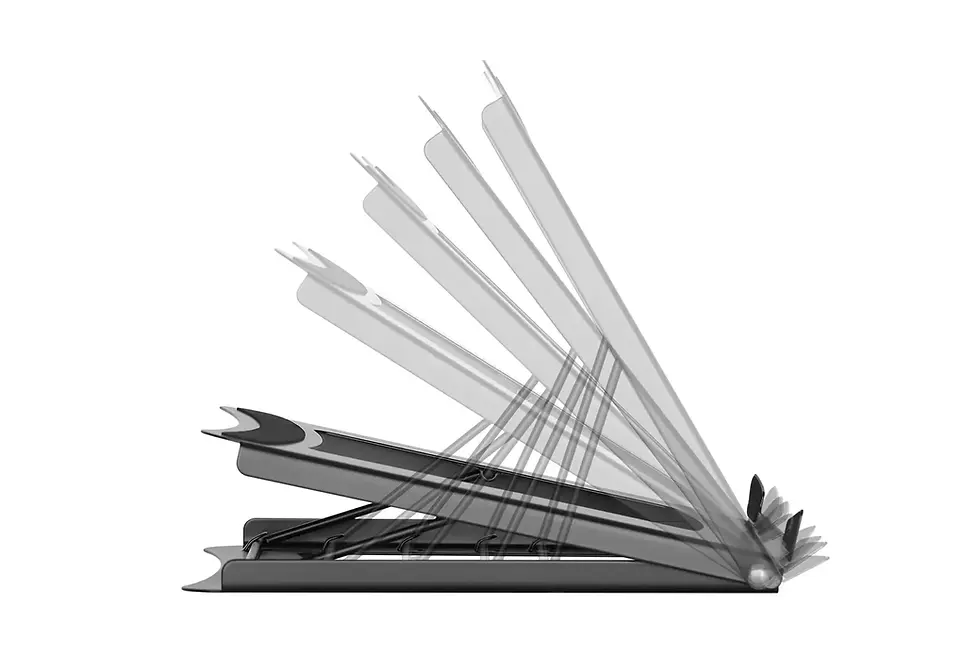
For example, the NATEC NPL-2271 offers eight height positions, making it easier to adapt a laptop's elevation to different monitor arrangements.
What About Viewing Distance?
Start with both screens approximately an arm's length away.
Move them closer or farther away depending on screen size, text readability and your visual comfort.
If you constantly lean forward to read the laptop screen, consider increasing display scaling or moving the screen slightly closer rather than changing your posture.
Practical tip: Before buying a laptop stand, measure how much your laptop screen needs to rise to reach a comfortable viewing height.
This helps you choose a model with enough adjustment range for your actual setup.
Mistake 2: Positioning Your Screens Without Choosing a Primary Display
When using two screens, their placement should depend on how frequently you use each one.
A common mistake is keeping the laptop directly in front of you while placing the larger external monitor off to the side—even though the monitor is where you do most of your work.
This can encourage unnecessary head turning throughout the day.
Setup A: External Monitor as the Primary Screen
This is a practical arrangement for spreadsheets, office work, programming and content creation.
Position the external monitor centrally, directly in front of your keyboard.
Raise the laptop on a stand beside it, angled slightly toward your normal sitting position.
Use the monitor for your primary tasks and the laptop for secondary applications.
For example:
External monitor: Excel, Google Sheets, design software or a primary browser window.
Laptop screen: Email, Microsoft Teams, Slack, notes or reference documents.
If you use your laptop for frequent video calls, consider camera positioning too. You may prefer moving the relevant meeting window closer to the laptop camera to avoid looking far away from it.
Setup B: Both Screens Used Equally
If you spend approximately equal time on each screen, consider bringing them closer together and centring the meeting point between them more directly in front of you.
Angle the displays slightly inward where appropriate.
The ideal arrangement depends on their sizes and how comfortably you can view both screens.
Setup C: One External Monitor With the Laptop Closed
If you rarely use the laptop's built-in screen, you may not need an open laptop stand.
A vertical laptop holder can keep your closed computer upright while the external monitor becomes your only active display.
This can reduce the horizontal space the laptop occupies.
Your laptop must support the intended closed-lid operation, and its ventilation requirements must be respected.
The takeaway: Don't try to make your workstation perfectly symmetrical. Give the screen you use most the most convenient position.
Mistake 3: Raising Your Laptop but Still Using Its Built-In Keyboard
A laptop stand raises both the display and the built-in keyboard.
That creates an important trade-off.
The higher position may improve screen viewing, but typing directly on the raised laptop can force your arms and wrists into an awkward position.
For a workstation used over several hours, an external keyboard and mouse are usually the more practical solution.
Why Separate Input Devices Matter
An external keyboard allows the screen and your hands to be positioned independently.
You can raise your laptop to a comfortable viewing height while keeping the keyboard near elbow level.
Aim for:
Relaxed shoulders
Elbows close to your body
Wrists in a relatively neutral position
A keyboard that doesn't require stretching forward
A mouse positioned close to the keyboard
You don't necessarily need an expensive ergonomic keyboard to achieve this.
The priority is positioning your equipment comfortably.
What About a Standing Desk?
If you alternate between sitting and standing, reconsider the relative position of the screens and input devices when changing desk height.
An adjustable laptop stand may help maintain a convenient laptop-screen position within a larger setup.
For a complete workstation upgrade, explore height-adjustable standing desks that support both seated and standing work.
Mistake 4: Using Mirrored Displays Instead of an Extended Desktop
You connect your laptop to a monitor, and both screens show exactly the same picture.
For presentations, that can be useful.
For everyday work, however, extended desktop mode is often more practical because it allows each display to show different applications.
How to Extend Your Laptop Display in Windows 11
Connect your external monitor through a compatible HDMI, DisplayPort or USB-C connection.
Press Windows + P.
Select Extend.
Open Settings → System → Display.
Select Identify to determine which screen is which.
Drag the display rectangles to match their actual positions on your desk.
Select your preferred primary display.
Check that the mouse pointer moves naturally between the screens.
If your external monitor is physically on the left, for example, it should normally be positioned on the left in Windows Display settings.
How to Extend Your MacBook Display
Connect the external monitor.
Open System Settings → Displays.
Select the appropriate display options.
Configure the external monitor as an extended display rather than a mirrored screen.
Arrange the display positions to match your actual desk layout.
Set your preferred main display.
Available options depend on your MacBook model and macOS version.
Don't Ignore Display Scaling
A laptop and external monitor may have different screen sizes, resolutions and pixel densities.
As a result, text may appear much smaller on one display.
Adjust scaling separately where supported, and check the refresh rate available through your connection.
For example, a 27-inch 4K monitor may benefit from display scaling that makes text more readable without giving up the advantages of its higher pixel density.
A well-positioned screen is only useful if its content is comfortable to read.
Mistake 5: Assuming Every USB-C Laptop Can Connect to an External Monitor
Not every USB-C connection supports video.
Two laptops can have visually identical USB-C ports while offering different features.
Depending on the computer, a USB-C port might support USB data, charging, DisplayPort video, USB4 or Thunderbolt.
Before Connecting a Monitor Through USB-C
Check three things:
1. Your laptop's port specification
Confirm that the relevant port supports external video output.
2. Your monitor's available inputs
Check whether the monitor accepts HDMI, DisplayPort or compatible USB-C video.
3. Your adapter, cable or docking station
Make sure it supports the required video connection, resolution and refresh rate.
An HDMI connector on a USB-C adapter does not guarantee that the connected laptop can output video through that adapter.
When Does a Laptop Stand With a USB-C Hub Make Sense?
For a permanent workstation, combining a stand and selected connectivity features can reduce the need for separate accessories.
The Unitek D1109B01 Adjustable Laptop Stand with USB-C Hub includes:
Adjustable height and tilt
Support for laptops up to 17 inches
Integrated USB-C connectivity
HDMI video output
RJ-45 Ethernet
Support for up to 100W USB-C Power Delivery pass-through input
It's a useful option for people who want both laptop elevation and connectivity in the same accessory.
However, the laptop must support the necessary USB-C functions. Charging also requires a compatible external power supply, and the wattage delivered to the laptop may be lower than the rated pass-through input.
Do You Need a Docking Station?
Not always.
If your laptop connects directly to your monitor and has enough available ports, a dock may be unnecessary.
A docking station becomes more useful when you want to connect multiple displays, Ethernet, storage and other accessories through a simplified connection.
Read our USB-C Hub vs Docking Station Guide to understand the differences before purchasing.
Mistake 6: Choosing the Wrong Type of Laptop Stand
Laptop stands are not interchangeable.
Some are built to raise an open laptop screen. Others are designed for portability, rotation or storing a closed computer vertically.
Choosing the right type can be more important than choosing the most expensive model.
Adjustable Laptop Stand: Best for an Open Dual-Screen Setup
If you use the laptop as a second screen, look for adjustable height and tilt.
The Unitek OT180SL01 supports laptops from 10 to 16 inches and features a 360-degree rotating base.
That makes it especially relevant for shared desks, meetings and workstations where the laptop display is repositioned regularly.
Foldable Laptop Stand: Best for Hybrid Working
If you move between home, office and other workplaces, portability may be more valuable than advanced features.
The DIGITUS Mobile Adjustable Laptop Stand is a foldable metal model designed for 10–15-inch laptops, supporting compatible devices weighing up to 5kg.
It is worth considering when you need a stand that can be packed away between work sessions.
Laptop Stand With USB-C Hub: Best for a Connected Workstation
If your setup requires monitor connectivity and Ethernet alongside an elevated laptop, consider a multifunction stand such as the Unitek D1109B01.
Always confirm host compatibility and available connections first.
Vertical Laptop Stand: Best for Closed-Lid Work
A vertical laptop holder serves a completely different purpose.
For example, the UGREEN 20471B Adjustable Vertical Laptop Stand has a 12–26mm adjustable slot for holding a compatible closed laptop upright.
It's particularly suitable for people who work from an external monitor and don't need to keep the laptop screen visible.
Before choosing this arrangement, check your laptop's closed-lid operating requirements and cooling design.
Explore adjustable and vertical laptop stands in the Standesk Desk Accessories collection.
Mistake 7: Buying Accessories Without Measuring Your Desk
A monitor, laptop stand, keyboard and mouse can all fit individually on a desk yet still form an inconvenient arrangement when used together.
The most useful measurement isn't just desk width.
Desk depth, monitor-base dimensions, laptop placement and cable routing matter too.
A Practical Example: Setting Up a 120 × 60cm Desk
Consider a desk measuring 120cm wide and 60cm deep.
A typical 27-inch 16:9 monitor is roughly 60cm wide, although exact dimensions vary.
A 14-inch laptop might be approximately 31–33cm wide.
Together, the screens can occupy around 90cm or more of horizontal space before allowing for any separation or angled placement.
That leaves limited flexibility for additional accessories, particularly once you consider the monitor base and keyboard-and-mouse area.
The dimensions are illustrative; check the actual products before ordering.
Four Measurements to Make Before Buying
Desk width
Can your monitor and laptop fit side by side without being pushed into awkward viewing positions?
Desk depth
Is there enough room to position the screens at a comfortable viewing distance while leaving space for your keyboard?
Monitor stand footprint
Will the monitor base interfere with your laptop stand or other accessories?
Laptop stand dimensions
Can the stand support your laptop safely, and does its adjustment range suit the desired screen height?
When a Monitor Arm Helps
A compatible monitor arm can free some of the space otherwise occupied by a monitor base while giving you more flexibility over height, depth and angle.
However, check VESA mounting compatibility, weight limits and your desk's mounting requirements.
Explore monitor arms at Standesk if your current monitor stand restricts positioning.
A clean desk setup is not necessarily one with fewer visible products. It's one where every accessory has a practical purpose and fits the available space.
Best Laptop Stands for Dual-Screen and Home-Office Setups
Now that you know what to avoid, here's how the five laptop stand designs compare for real working situations.
NATEC NPL-2271 — For Everyday Laptop and Monitor Workstations
The NATEC NPL-2271 Adjustable Metal Laptop Stand is a practical starting point for an adjustable dual-screen setup.
Key features:
Compatible with 12.1–17.3-inch laptops
Eight height adjustment positions
Metal construction
Black finish
Why choose it?
Its main advantage is straightforward height adjustment, particularly for larger laptops used next to an external monitor.
Best for: Home offices, larger laptops and regular desk-based work.
Unitek OT180SL01 — For Flexible Laptop Positioning
The Unitek OT180SL01 Adjustable Aluminium Laptop Stand is designed for people who want to reposition their laptop frequently.
Key features:
Supports 10–16-inch laptops
Adjustable height and tilt
360-degree rotating base
Aluminium construction
Foldable design
Why choose it?
The rotating base makes it particularly useful for meetings, shared workstations and changing screen arrangements.
Best for: Hybrid work, presentations and adjustable dual-screen setups.
DIGITUS Mobile — For Working Between Different Locations
The DIGITUS Mobile Adjustable Laptop Stand offers an adjustable, foldable design for people who frequently change work locations.
Key features:
Supports 10–15-inch laptops
Maximum load capacity of 5kg
Foldable metal construction
Adjustable viewing position
Black finish
Why choose it?
It focuses on portability and straightforward adjustment rather than integrated electronics.
Best for: Students, business travellers and hybrid workers.
Unitek D1109B01 — For Laptop Stands With Additional Connectivity
The Unitek D1109B01 Adjustable Laptop Stand with USB-C Hub combines laptop positioning with several common workstation connections.
Key features:
Supports laptops up to 17 inches
Adjustable height and tilt
USB-C hub functionality
HDMI output
Ethernet connection
Up to 100W USB-C PD pass-through input
Why choose it?
It combines screen positioning and selected connectivity functions, making it relevant to compact workstations.
Best for: Laptop-and-monitor setups where you also need additional ports.
Check compatibility with your laptop before purchasing.
UGREEN 20471B — For Minimalist Closed-Laptop Setups
The UGREEN 20471B Adjustable Vertical Laptop Stand is designed to hold a closed laptop upright.
Key features:
Adjustable slot width of 12–26mm
Aluminium construction
Compact footprint
Holds one compatible closed laptop
No electronic connection required
Why choose it?
It reduces the horizontal desk space occupied by a closed laptop.
Best for: External-monitor workstations where the laptop's own display isn't needed.
If you're not sure which design suits your setup, compare the options in the Standesk Laptop Stands & Desk Accessories collection.
Three Laptop and External Monitor Setups Worth Considering
There is no universal desk arrangement. The best configuration depends on how you use your screens and whether you frequently move your laptop.
1. The Everyday Home-Office Setup
Best for: Spreadsheets, email, office applications, programming and regular multitasking.
Use an external monitor as your primary screen.
Position your open laptop beside it on an adjustable stand.
Keep an external keyboard and mouse centred in front of your primary display.
This arrangement allows you to work on the monitor while keeping communication or reference material visible on the laptop.
Useful accessories: Adjustable laptop stand, keyboard, mouse and optionally a monitor arm.
2. The Minimalist Single-Monitor Setup
Best for: People who primarily use one large external display.
Connect your laptop to the monitor and configure closed-lid operation if supported.
Use an external keyboard and mouse.
Place the closed laptop in a suitable vertical holder to free up desk space.
Useful accessories: Vertical laptop stand and compatible external-monitor connection.
This layout is especially attractive on compact desks where an open laptop screen would otherwise occupy valuable space.
3. The Hybrid One-Cable Workstation
Best for: People who regularly connect and disconnect their laptops.
Use an adjustable laptop stand beside the external monitor.
Connect your peripherals through an appropriate USB-C hub or docking station.
Choose the connection solution according to your laptop's video, charging and peripheral requirements.
Useful accessories: Adjustable laptop stand, compatible dock or USB-C hub, external keyboard and mouse.
For the complete display setup, explore external monitors and monitor arms at Standesk.
You can improve many laptop-and-monitor workstations before purchasing a single accessory.
Try this quick assessment.
First minute: Check your primary screen.
Sit normally and look straight ahead. Is the screen you use most positioned directly in front of you?
Second minute: Check laptop height.
Look at the laptop display. Does switching between the screens require a large downward head movement?
Third minute: Check your hands.
Are your keyboard and mouse easy to reach without raising your shoulders or stretching your arms?
Fourth minute: Check display settings.
Are your screens arranged correctly in Windows or macOS? Does the pointer move naturally between them? Are text size and scaling comfortable?
Fifth minute: Check your desk space.
Is your monitor base taking up unnecessary room? Can your laptop stand fit without blocking cables, vents or mouse movement?
This simple assessment tells you what kind of accessory would actually improve the setup.
If screen height is the main issue, an adjustable laptop stand is a logical first purchase.
If the monitor base restricts your workspace, a monitor arm may help.
If connecting everything takes too much effort, consider a suitable USB-C hub or docking station.
And if you prefer working with your laptop closed, a vertical holder may offer the cleanest arrangement.
Final Verdict: Build a Laptop and Monitor Setup That Works Together
A laptop stand and an external monitor are not competing upgrades.
They serve different but complementary purposes.
An external monitor provides more display space. An adjustable laptop stand helps position your existing laptop display alongside it.
A separate keyboard and mouse allow the screens to be positioned independently of your hands.
And accessories such as monitor arms, vertical laptop holders and docking stations can improve flexibility when they're chosen for the right reasons.
The most practical order for building your workstation is:
Decide which screen will be your primary display.
Position both screens at comfortable viewing heights and distances.
Arrange your keyboard and mouse independently.
Check display settings and connection compatibility.
Add the laptop stand, monitor arm or docking solution that solves your remaining setup problem.
You don't need an expensive desk full of accessories to build a better workspace.
You need a setup that supports the way you actually work.
Upgrade Your Laptop Workspace With Standesk
Whether you're creating a home office, organising a study desk or improving a professional workstation, start with the equipment that makes your existing setup easier to use.
Discover adjustable laptop stands, vertical holders, desk mats and other workspace accessories.
You can also explore external monitors, monitor arms and standing desks to complete your setup.
Frequently Asked Questions
How should I position my laptop next to an external monitor?
Place your primary screen directly in front of you and position the laptop beside it on an adjustable stand. Keep the screens at comfortable viewing heights and use a separate keyboard and mouse for extended work.
Should my laptop screen be the same height as my external monitor?
Keeping the screens at similar viewing heights can reduce unnecessary head movement. Exact alignment isn't essential, especially when the screens have different sizes. Prioritize your main screen and comfortable viewing angles.
Is a laptop stand necessary when using an external monitor?
Not always, but it's useful if you keep the laptop open as a second display. An adjustable stand helps raise and position the laptop screen alongside your external monitor.
Should my laptop be on the left or right of my monitor?
Either side can work. Choose according to your desk space, port locations, lighting and how often you use the laptop screen. Keep the screen you use most directly in front of you.
How far should I sit from my laptop and external monitor?
Approximately an arm's length is a practical starting point. Adjust for screen size, text readability and comfort. Larger screens may require a different viewing distance.
Do I need an external keyboard with a laptop stand?
For extended work, an external keyboard and mouse are generally recommended. They allow the laptop screen to be raised while your hands remain at a comfortable working height.
How do I extend my laptop screen to an external monitor?
On Windows 11, press Windows + P and select Extend. On a Mac, open System Settings → Displays and configure the external display for an extended desktop rather than mirroring.
Can every USB-C laptop connect to an external monitor?
No. USB-C ports can support different features. Check that your laptop supports the required video output and that your cable or adapter is compatible with the monitor.
Can I use my laptop with the lid closed and an external monitor?
Many laptops support closed-lid operation when connected to an external monitor and compatible input devices. Check your laptop's requirements for power, settings and ventilation before using this arrangement.
Is a vertical laptop stand better than an adjustable laptop stand?
A vertical stand is suitable for storing a closed laptop when using an external monitor. An adjustable laptop stand is better when you want to keep the laptop screen open as a second display.
Does a laptop stand improve cooling?
Some stands can provide additional clearance around the laptop, but actual cooling benefits depend on the device's ventilation design. Avoid blocking vents and don't assume every stand reduces temperatures.
Do I need a docking station for a laptop and external monitor?
Not necessarily. A direct HDMI, DisplayPort or compatible USB-C connection may be sufficient. A docking station is more useful when you want to connect multiple displays or peripherals through a simplified connection.
Standesk offers some of the products mentioned in this guide. Recommendations are based on published specifications, intended use and practical workstation requirements. Product configurations, prices and availability may change.






Comments