
Monitor Buying Guide 2026 — Size, Resolution & Panel Types for Work
Updated: Mar 6

Buying a monitor in 2026 means choosing the right balance between size, resolution, refresh rate, and panel type — not just picking the biggest screen on sale.
For office work, text clarity and ergonomics matter more than extreme refresh rates. For gaming, response time and Hz become critical. Resolution affects both sharpness and GPU demand.
This monitor buying guide simplifies the decision process so you can confidently choose between 24", 27", or 32", 1080p vs 1440p vs 4K, IPS vs VA, and the refresh rate that actually fits your usage.
Quick Answer: What Monitor Specs Should You Prioritize?
For office work, focus on resolution (1440p preferred), panel quality (IPS for text clarity), and ergonomic adjustability. For gaming, prioritize refresh rate (144Hz+), response time, and adaptive sync support.
Why Your Monitor Choice Matters in 2026
A modern monitor is not just a display — it’s your entire digital workspace.
The right monitor can help you:
reduce eye strain
work longer with less fatigue
organize multiple windows efficiently
improve posture and ergonomics
increase focus
boost overall productivity
But the wrong one leads to the opposite: squinting, clutter, neck pain, and constant window switching.
Let’s explore what actually matters when choosing a monitor for work — from size and resolution to panel type and connectivity.
1. Choosing the Right Monitor Size
Monitor size affects comfort, clarity and multitasking capacity more than any other specification.
24-inch monitors (for very small desks)
Good for:
student rooms
compact desks < 60 cm depth
Limitations:
limited multitasking
smaller text size
not ideal for office work unless space is extremely tight
27-inch monitors (the productivity standard)
Best for:
home offices
professional work
multitasking
Reasons it’s the “sweet spot”:
large enough to keep two windows side-by-side
not overwhelming on most desks
works well with 1440p and 4K
32-inch monitors (for bigger desks & complex workflows)
Best for:
spreadsheet-heavy work
design and data analysis
multitasking with multiple apps
Requires:
deeper desk (~70–80 cm)
good ergonomics or a monitor arm
34-inch ultrawide monitors (replace dual monitors)
Best for:
heavy multitasking
timeline-based work (video, audio)
replacing two monitors with one clean setup
Benefits:
no bezel gap
immersive productivity
excellent for side-by-side workflows
The right number of screens depends on whether your work requires deep concentration or constant comparison — see our guide on single vs dual monitor setup.
2. Resolution: How Sharp Should Your Monitor Be?
Resolution determines text clarity and how much you can fit on the screen.
1080p (Full HD)
Suitable only for:
22–24-inch monitors
Not recommended at 27” or above — text becomes soft.
1440p (QHD)
The best balance for 27-inch monitors:
sharp text
comfortable multitasking
lower GPU requirements
Recommended for most users.
4K (UHD)
Extremely sharp on 27–32-inch screens.
Best for:
reading and writing
design and editing
long-term future-proof setups
Requires proper scaling (125–150%) for comfortable text size.
3. Panel Types Explained (IPS, VA, OLED)
IPS (Best for office work)
Pros:
excellent color accuracy
wide viewing angles
consistent brightness
Ideal for:
writing, spreadsheets, editing, design
shared workspaces
VA (Best contrast)
Pros:
deeper blacks
better movie experience
Cons:
narrower viewing angles
Better for mixed entertainment + work setups.
OLED (Premium)
Pros:
perfect blacks
incredible contrast
rich color
Cons:
expensive
risk of image retention with static UI
Ideal for creative professionals or hybrid work + entertainment setups.
4. Refresh Rate: Do You Need 144 Hz for Work?
Refresh rate influences motion smoothness.
For productivity:
60–75 Hz is enough
100–144 Hz feels smoother (scrolling, window movement)
If you work by day and game at night, 100–144 Hz is ideal.
5. Brightness, Contrast & Color Accuracy
Brightness
250–300 nits = enough for typical offices
350+ nits = ideal for bright rooms
Color Accuracy
Look for:
coverage of sRGB (100%)
optional wide-gamut (DCI-P3) if you do design
Contrast
IPS ≈ 1000:1
VA ≈ 3000:1
OLED = infinite
6. Connectivity: USB-C, HDMI, DisplayPort & More
Connectivity can make or break your desk setup.
USB-C with Power Delivery (Recommended)
One cable can:
charge your laptop
send video
send data
reduce clutter
This is a top feature for 2026.
DisplayPort
Best for:
higher refresh rates
superior stability
HDMI
Standard for most devices.
USB Hub Integration
Useful for:
keyboard
mouse
webcams
storage devices
Reduces the need for a separate docking station.
7. Ergonomics: Stand Adjustability & Monitor Arms
Ergonomics determine whether you stay comfortable for long hours.
Look for:
height adjustment
tilt
swivel
pivot (for coding or documents)
Monitor Arms
A monitor arm:
frees desk space
improves posture
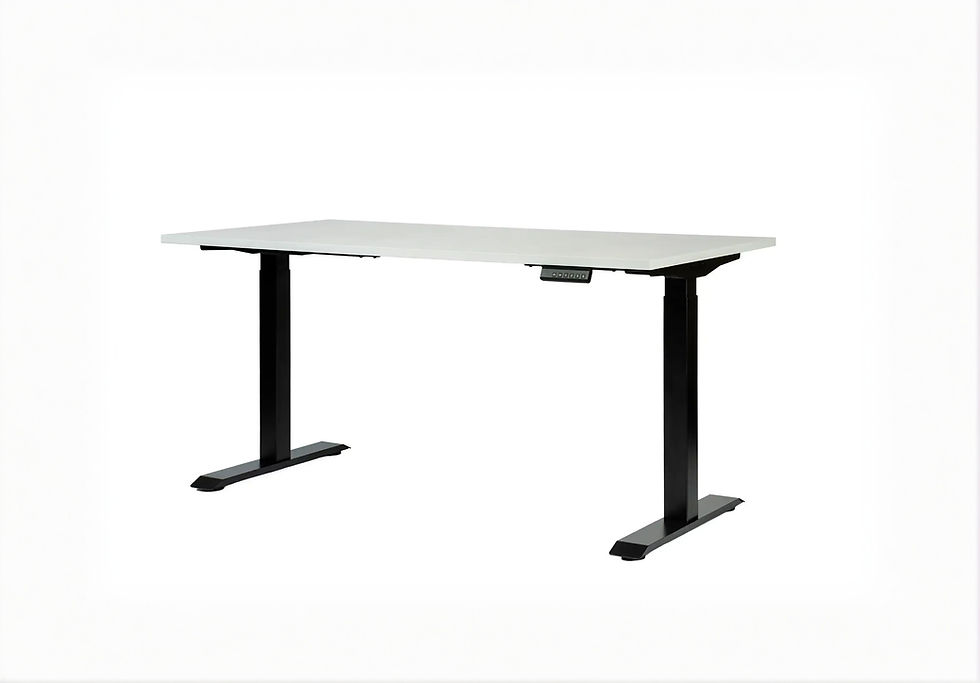
works better with standing desks
allows perfect placement
A must for productivity-focused setups. Monitor position affects focus and cognitive fatigue more than people expect — see our deep work environment guide for a practical setup method that reduces distraction and strain.
8. Workspace Fit: Desk Size, Depth & Viewing Distance
Desk depth:
50–60 cm → 24–27” monitors
70–80 cm → 27–32” monitors
80+ cm → 34” ultrawide
Viewing distance:
24–27” → 50–70 cm
32–34” → 70–90 cm
9. Energy Efficiency & Eye Comfort Features
Look for:
flicker-free backlight
low blue light modes
anti-glare (matte) coating
These significantly reduce fatigue.
10. What Type of Monitor Should You Buy in 2026? (Quick Recommendations)
For everyday productivity → 27” 1440p IPS
Perfect balance.
For multitasking → 32” 4K or 34” ultrawide
More room for more windows.
For design → 27–32” 4K IPS or OLED
Sharper detail + color accuracy.
For hybrid work + gaming → 27” 1440p 100–144 Hz
Smooth and versatile.
For small desks → 24” 1080p or 24” 1440p
Compact and functional.
1440p vs 4K: Which Resolution Should You Choose?
1440p offers a strong balance between sharpness and performance, especially on 27" monitors. It provides clearer text than 1080p without the heavy GPU demand of 4K. 4K delivers maximum detail and workspace area but requires stronger hardware and proper scaling. For office users, 1440p is often the practical sweet spot, while 4K suits high-detail creative work.
What Refresh Rate Do You Actually Need?
For standard office tasks, 60–75Hz is sufficient. Higher refresh rates such as 120Hz or 144Hz make motion smoother and reduce perceived blur, which benefits gaming and fast scrolling. However, refresh rate should not be prioritized over resolution and panel quality for productivity-focused setups.
Does Panel Type Affect Productivity?
Yes. IPS panels are generally preferred for accurate colors and stable text clarity. VA panels provide stronger contrast, which can improve movie viewing. OLED offers excellent contrast and response times but may not always be ideal for static office content due to burn-in considerations. For mixed work and gaming use, IPS remains the safest all-around choice.
Final Recommendation: What Should You Prioritize?
27" 1440p is the sweet spot for most users
IPS panels offer best all-around clarity
60–75Hz is enough for office work
144Hz+ only matters for gaming
Balance resolution and panel quality before focusing on refresh rate.
FAQ — Monitor Buying Guide 2026
1. What size monitor is best for work?
A 27-inch monitor is ideal for most desks and offers excellent productivity.
2. Is 4K worth it for a work monitor?
Yes — 4K provides superior text clarity and long-term value, especially at 27–32 inches.
3. Is IPS better than VA for office use?
Yes — IPS offers better viewing angles and color consistency, ideal for productivity.
4. Should I get USB-C on my monitor?
If you use a laptop for work, USB-C with power delivery is one of the best upgrades you can make.
5. Are curved monitors good for office work?
Yes — especially in ultrawide formats. They improve viewing comfort and immersion.



















Comments