
How to Choose a Built-In Desk Socket — Buyer’s Guide 2026
Updated: Dec 21, 2025

Built-in desk sockets have become essential in modern workspaces, eliminating cable clutter and bringing power exactly where you need it: on the desk surface. But with so many styles, sizes and features available in 2026—pop-up modules, grommet outlets, recessed boxes, power hubs—it’s not always obvious which one is right for your setup.
This buyer’s guide explains everything you need to know before choosing a built-in desk socket, whether you’re setting up a home office, building a corporate workstation or outfitting a full meeting room.
Why Built-In Desk Sockets Matter in 2026
Today’s workspaces rely on more devices than ever:
laptops and monitors
phones
chargers and accessories
lamps, speakers, audio gear
docking stations
A built-in power solution keeps your desk organized, functional and safe, while removing extension cords, loose chargers and floor-level power strips. These setups are part of broader built-in desk power solutions designed for modern, permanent workspaces.
A well-chosen built-in desk socket can:
streamline your workflow
reduce cable clutter
improve safety
enhance workspace aesthetics
bring charging ports within easy reach
Types of Built-In Desk Sockets
Before choosing a model, it’s important to understand the main categories.
1. Pop-Up or Lift-Up Desk Sockets
These hide inside the desk and raise when pressed. Perfect for modern, minimal setups. Many users compare these options with dedicated pop-up power outlets for desks when planning clean, premium installations.
Best for:
meeting rooms
minimalist desks
shared workspaces
Pros:
hides completely when not in use
easy access from above
often includes a mix of AC + USB + data ports
Cons:
moving parts (lower durability at low quality)
not ideal if you keep plugs inserted 24/7
2. Recessed Flip-Top Power Boxes
These sit flush inside the desk with a lid that opens to reveal power outlets.
Best for:
conference rooms
executive desks
multi-user setups
Pros:
premium look
accommodates many ports
cables stay hidden inside the compartment
Cons:
requires large cut-out
more complex installation
3. Grommet-Mounted Power Outlets
These replace the traditional round cable grommet in many desks.
Best for:
small home offices
upgrading existing desks
compact workspaces
Pros:
uses existing hole (60–80 mm)
discreet and low-profile
easy, quick installation
Cons:
fewer ports due to limited size
4. Clamp-On Desk Power Modules
Not technically “built-in,” but they provide similar functionality without cutting the desk.
Best for:
rented spaces
temporary setups
hot desks
Pros:
no drilling required
highly flexible
fast installation
Cons:
more visible than built-in units
What to Consider When Choosing a Built-In Desk Socket
Let’s break down the key factors that matter when selecting the right model.
1. How Many Devices Do You Need to Power?
Start by listing devices you use daily:
laptop
monitor
phone
headphones
docking station
printer / scanner
Then add 1–2 extra outlets for future expansion.
If you use 1–2 devices → grommet or clamp-on module works
If you use many devices → recessed box or large pop-up module
2. Port Types: AC, USB-A, USB-C, Data, HDMI
In 2026, the must-have port is USB-C with Power Delivery (PD).
Here’s what each port is best for:
AC power sockets
Laptops, monitors, docks, lamps.
USB-A ports
Older accessories, headphones, basic charging.
USB-C ports (PD)
Fast-charging phones, tablets, headphones, and most new laptops.
HDMI / RJ45 / USB passthrough
Best for meeting rooms or collaborative setups.
3. Desk Thickness and Compatibility
Not every unit fits every desk.
Check:
desk thickness range
maximum cut-out size
clearance under the desk
space for wiring
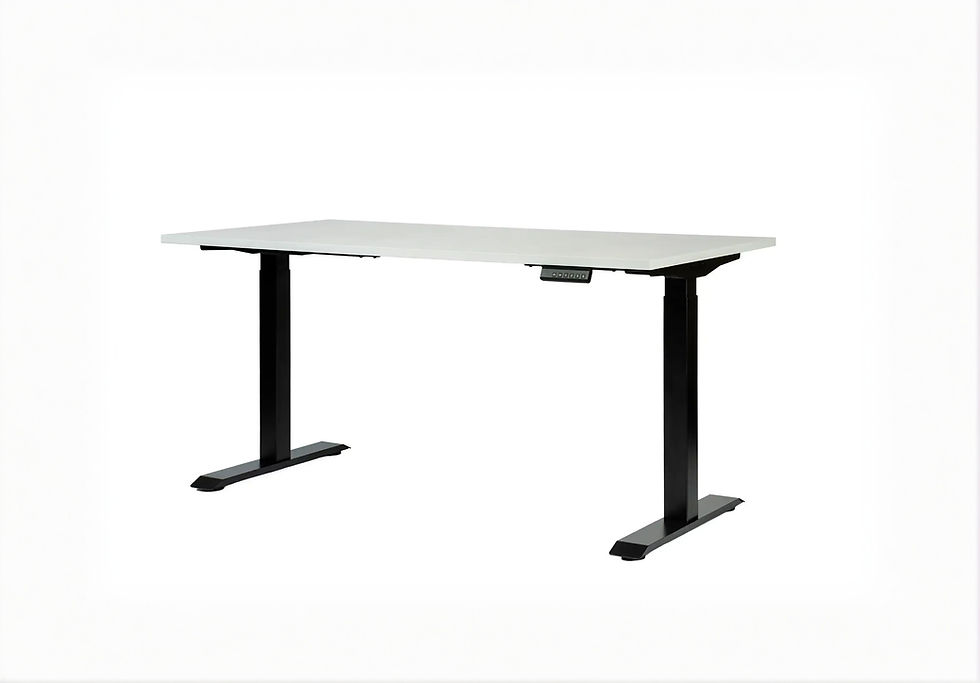
Standing desks often have limited room—choose slim designs or grommet modules.
4. Aesthetics: Flush, Minimal, or Functional?
Choose based on your workspace style:
Style | Best Option |
Minimal / Scandinavian | Pop-up or flush recessed |
Practical home office | Grommet socket |
Corporate / premium | Recessed flip-top |
Flexible / temporary | Clamp-on module |
A well-integrated power socket becomes part of the furniture, not clutter.
5. Safety, Certification & Load Capacity
NEVER overlook electrical safety.
Check for:
overload protection
certified plug type
correct voltage (EU / UK / US differences)
child safety shutters
fire-resistant materials
Avoid extremely cheap, unbranded units with unclear specs.
6. Installation Requirements
If you can cut the desk:
You can choose:
pop-up sockets
recessed flip-top boxes
grommet units
If you cannot modify the desk:
Go for:
clamp-on power modules
under-desk mounted power strips
In a rented office or furnished space, clamp-on or grommet solutions are ideal.
Built-In Desk Socket Recommendations by Use Case
Home Office
Choose:
1–2 AC outlets
USB-C charging
compact design
Grommet outlets are often the perfect match.
Corporate Workstation
Choose:
2–3 AC outlets
USB ports
durable, certified build
Pop-up or recessed modules work best.
Meeting Room
Choose:
multiple AC sockets
USB-A + USB-C
data (HDMI, RJ45, USB passthrough)
premium brushed metal designs
Flip-top boxes offer the best blend of function + appearance.
Hot-Desk / Shared Space
Choose:
clamp-on power hubs
movable grommet modules
easily accessible USB ports
Flexibility is key.
Common Mistakes to Avoid When Choosing a Built-In Desk Socket
Not checking desk compatibility
Buying too few ports
Choosing USB-A only (outdated)
Ignoring safety certifications
Selecting a unit too large or too small for the cut-out
Not planning cable management together with power
Built-in sockets work best when planned alongside proper cable management solutions from the start.
FAQ – Choosing a Built-In Desk Socket (2026)
1. Are built-in desk sockets safe?
Yes—if you choose certified products, follow load limits and install them properly.
2. Do I need a professional installer?
Not for grommet or clamp-on modules.
Pop-up and recessed boxes may require more skill or a professional.
3. How many ports do I need?
Most home users need 2 AC sockets + USB-C + USB-A.
Conference tables may need 4–8 AC sockets + data ports.
4. Are USB-C ports important?
Absolutely. USB-C PD is the new charging standard for phones, tablets and many laptops.
5. Can I combine different power solutions?
Yes — many workspaces use:
under-desk power strips for permanent equipment
built-in sockets for user access
cable trays for management





















Comments