
Best Built-In Desk Power Solutions for Workspaces in 2026
Updated: Apr 29

Modern workspaces are filled with laptops, monitors, phones, lamps, chargers and accessories — but most desks still come with… one wall socket three meters away.
Built-in power solutions solve that problem. Instead of crawling under the desk or dragging extension cords across the room, you bring power, USB and data directly to the worksurface in a clean and safe way.
This guide walks through the main types of built-in desk power solutions. if you’re comparing available options, you can browse our full range of desk power sockets, power modules and power strips to see how these solutions differ in real setups.
Why Built-In Desk Power Matters
A built-in power system is more than a nice extra:
Improves productivity – no time wasted searching for chargers or free sockets.
Reduces cable clutter – fewer trailing extensions and visible power strips.
Improves safety – less tripping risk, fewer overloaded adapters on the floor.
Looks professional – especially in meeting rooms, shared offices and reception areas.
Supports modern devices – USB-C charging, fast USB-A, sometimes even network ports.
Whether it’s a home office, a corporate workstation or a meeting room, integrated power turns the desk into a real workstation instead of just a surface.
Main Types of Built-In Desk Power Solutions
There’s no single “best” option for everyone. Different spaces and usage patterns will benefit from different solutions.
If you’re comparing available options, you can browse our full range of desk power sockets, power modules and power strips to see how these solutions differ in real setups.
1. Pop-Up / Lift-Up Power Modules
(For a detailed breakdown of models, port layouts and desk compatibility, see our guide to pop-up power outlets for desks.)
These are units that sit flush in the desktop and lift or pop up when needed. When closed, they blend into the surface.
Best for:
Clean, minimalist desks
Meeting rooms and hot desks
Shared workspaces where users plug in temporarily
Pros:
Very clean look when not in use
Sockets and USB ports are easy to access from above
Often include a mix of power + USB + sometimes data (RJ45, HDMI)
Cons:
Requires a cut-out in the desk
Moving parts → needs decent build quality
Not ideal if you need plugs connected 24/7 (you might leave it permanently open)
2. Recessed / Flip-Top Power Boxes
These modules are built into a rectangular opening in the desk. Power outlets sit inside a small “box” with a flip lid or brush strip.
Best for:
Conference tables
Executive desks
Desks where cables should exit neatly toward the user
Pros:
Very tidy cable routing: cables drop inside the box and exit through brush strip
Can host multiple sockets, USB ports and even AV/network connections
Lid can often close even when cables are plugged in
Cons:
Needs more space inside the desk
Installation is more complex
Overkill for simple single-user home setups
3. Desk Grommet Power Outlets
These replace or reuse the classic cable grommet hole on the desk (usually 60–80 mm). The module provides one or more sockets, USB ports, or a combination.
Best for:
Retrofitting existing desks
Home offices needing 1–2 easy-access outlets
Small workstations where space is limited
Pros:
Uses existing grommet hole in many desks
Minimal visual impact
Easy to route cables through the same opening down to under-desk sockets
Cons:
Limited space → fewer ports than larger modules
Not ideal if you need many devices connected at once
4. Edge-Mounted / Clamp-On Power Hubs
These units clamp to the edge of the desk, bringing sockets and USB ports right to the front or side. No need for drilling.
Best for:
Rental spaces where you can’t cut the desk
Quick upgrades of existing workstations
Hot desks and flexible setups
If you’re unsure whether a clamp-on hub, built-in socket or under-desk strip makes the most sense, our comparison of desk power outlets vs power hubs vs power strips explains the differences clearly.
Pros:
No drilling or cutting required
Very easy to reposition or remove
Great ergonomics: ports stay close at hand
Cons:
Visible on the edge → less minimal than built-in
Can limit how close the desk can sit to a wall in some positions
5. Under-Desk Power Strips / Power Bars
These are mounted to the underside of the desk, keeping power strips off the floor while still being relatively hidden.
Best for:
Supplying power to monitors, docks, speakers, etc.
Pairing with built-in or clamp modules that provide user-facing outlets
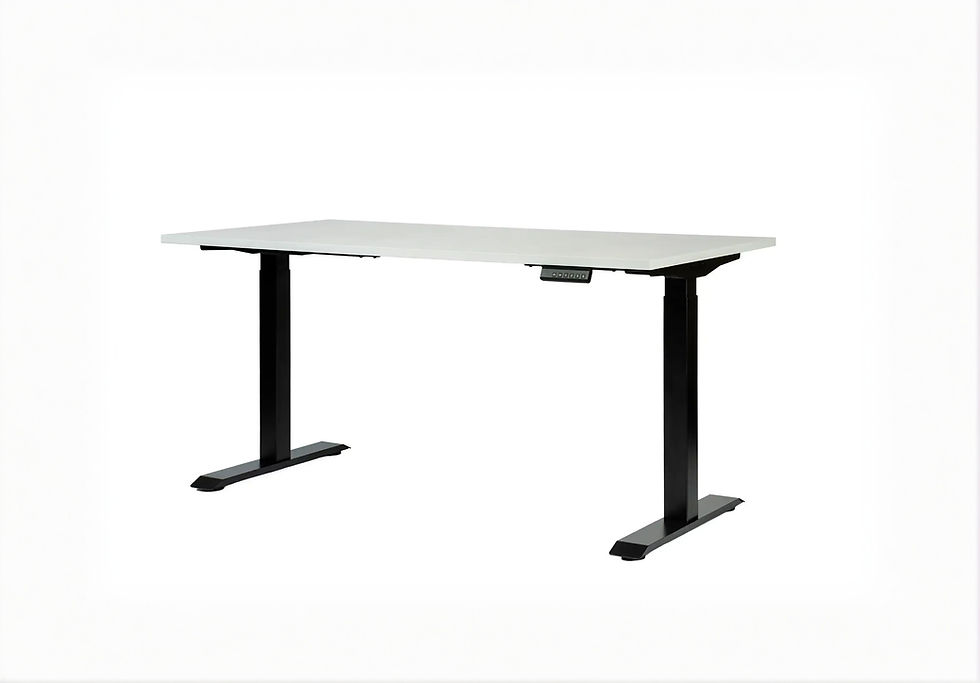
Clean cable management under sit-stand desks
Pros:
Removes messy power strips from the floor
Ideal for devices that stay plugged in permanently
Works well with cable trays and channels
Cons:
Less convenient for frequent plugging/unplugging
Not a full replacement for user-accessible sockets on the desktop
6. Integrated Power Rails and Channels
These solutions run along the back or side of the desk (sometimes shared by multiple desks in a bench system), powering several workstations from one feed.
Best for:
Multi-desk bench setups
Co-working spaces
Corporate offices with many identical workstations
Pros:
Scales well across many desks
Keeps cabling organized and centralized
Often integrates with partition screens and cable ducts
Cons:
Requires planning at layout stage
Installation is more involved than a simple power hub
How to Choose the Right Built-In Power Solution
Before buying anything, answer a few key questions about your workspace. You can also review available desk power modules and socket solutions to match your requirements with real products.
1. How Many Devices Need Power at the Desk?
Think beyond just your laptop. List everything you might realistically plug in:
Laptop / docking station
Monitor(s)
Phone charger
Desk lamp
Speakers or audio interface
Additional devices (scanner, printer, etc.)
Then add +1–2 spare outlets for guests or future upgrades.
If you need power for many devices, consider:
recessed power boxes
integrated rails
under-desk strips + a smaller user-facing module
If you only need one laptop and a phone, a compact grommet outlet or clamp-on hub may be enough.
2. What Types of Ports Do You Really Need?
Think in three layers:
AC power sockets – for laptops, monitors, docks
USB charging – USB-A and especially USB-C in 2026
Data / AV (optional) – Ethernet, HDMI, USB passthrough for conference tables
If your devices are mostly modern:
prioritize USB-C PD (Power Delivery) for fast charging
keep at least one classic USB-A for legacy devices
For meeting rooms, integrated HDMI or USB-C passthrough can reduce cable mess when sharing screens.
3. Are You Willing (or Allowed) to Cut the Desk?
Yes, cutting is possible → you can use pop-up units, recessed boxes or grommet modules for the cleanest integration.
No, desk must stay intact → clamp-on power hubs and under-desk strips are your best friends.
In rented offices or coworking spaces, clamp-on solutions usually provide the best mix of performance and reversibility.
4. How Important Is Aesthetics vs. Flexibility?
If your priority is a minimal, design-focused look:
choose recessed or pop-up units that sit flush
combine them with under-desk power and cable trays so almost nothing is visible
If you prioritize flexibility and upgrades:
clamp-on power hubs + under-desk strips
easier to move, replace or expand when setups change
5. Safety, Load and Certification
Power is not the place to cut corners. For any built-in or semi-permanent solution:
ensure compatibility with your local plug type and voltage
check maximum load / wattage of the module
choose products with proper certifications and surge or overload protection where appropriate
avoid cheap, no-name copies without clear specs
If you’re ever unsure about wiring or permanent connections, involve a qualified electrician—especially for hardwired installations.
Built-In Power for Different Types of Workspaces
Home Office
Needs:
2–4 AC sockets
USB charging
tidy cabling and simple installation
Good setups:
grommet power outlet + under-desk power strip
clamp-on power hub for laptop/phone + floor or under-desk strip for monitor and peripherals
Single Corporate Workstation
Needs:
reliable power for PC/laptop, monitor(s), dock
safe cable routing in open-office environment
Good setups:
under-desk power bar feeding all equipment
small built-in module (grommet or pop-up) for user-facing outlets
Meeting Room / Conference Table
Needs:
power for multiple laptops
shared USB / USB-C charging
sometimes HDMI / network / USB for screen sharing
Good setups:
recessed flip-top power boxes in the table
integrated modules with power + data + AV
central cable trunking under the table so nothing hangs off the edges
Flexible / Hot-Desk Area
Needs:
easy, fast access to power for different users
no permanent personal setup
Good setups:
clamp-on power hubs on each workstation
shared power rails running along desk benches
occasional built-in pop-up modules in shared tables
Cable Management: The Hidden Partner of Built-In Power
Even the best power solution will look messy if cables are left dangling — which is why proper desk cable management is essential when installing built-in power.:
use cable trays under the desk for power strips and adapters
route cables through grommets or brush openings
use cable clips, ties or sleeves to bundle wires
for sit-stand desks, ensure cables have enough slack to move but are still controlled
A simple rule:
Everything that doesn’t need to be on the desk should live under or behind it.
Built-in power is what makes that possible.
FAQ – Built-In Desk Power Solutions (2026)
1. Are built-in desk power outlets safe?
Yes, if you use certified products, respect load limits and follow installation instructions. For hardwired or complex setups, always consult a qualified electrician.
2. Do I need a professional to install built-in desk power?
For simple plug-in desk modules (pop-up, grommet, clamp-on), usually not. For anything involving hardwired electrical connections or large meeting tables, professional installation is strongly recommended.
3. What’s the easiest built-in power option for an existing desk?
A clamp-on power hub or a grommet power outlet is usually the easiest retrofit. Both require little to no modification and can be installed in minutes.
4. Should I choose a unit with USB and USB-C ports?
Yes. In 2026, many devices charge via USB-C, and having integrated USB/USB-C power on the desk reduces your need for separate chargers.
5. Can I combine different power solutions on one desk?
Absolutely. A common best practice is to use under-desk power strips for equipment that stays plugged in, plus a built-in or clamp-on module for user-facing outlets and USB charging.





















Comments