
Why Your FPS Aim Feels Different Every Day — 9 Desk Setup Problems Players Ignore

Quick answer: your aim is not only a mouse problem
If your aim feels sharp one day and completely unstable the next, your gaming mouse is not always the problem. FPS consistency depends on the full setup around the mouse: the mousepad surface, desk height, chair position, arm contact, monitor distance, mouse skates, cable tension and how much space you have to move.
Before changing sensitivity again or buying another mouse, check the physical setup first. Many players blame muscle memory, DPI or sensor quality when the real issue is friction, posture or an inconsistent desk environment.
A better FPS setup usually starts with the basics: a suitable mousepad, stable desk space, relaxed arm position, correct monitor distance and peripherals that match your grip, sensitivity and playstyle.
Why does your FPS aim feel inconsistent even with the same mouse?
Your FPS aim can feel inconsistent because your mouse does not move in the same physical conditions every day.
Even when your DPI, sensitivity and mouse stay the same, your setup can slightly change how your hand, wrist and forearm move. A dusty mousepad, sticky forearm, different chair height, tense shoulder, worn skates or cable pull can make the same mouse feel completely different.
This is why many FPS players keep changing sensitivity but never solve the real problem. The issue is not always in the game settings. It is often in the setup.
The easiest way to diagnose it is to split the problem into three areas:
Surface problems — mousepad, arm drag, skates and glide consistency
Posture problems — desk height, chair position and monitor distance
Hardware and layout problems — cable tension, wireless receiver placement, desk space and clutter
Let’s go through each one.
Surface problems: when the mouse does not glide the same way every day
1. Your mousepad friction changes during the day
Mousepad friction is one of the most ignored reasons why aim feels different.
A cloth mousepad does not always feel the same. Dust, humidity, sweat, skin contact and surface wear can all change how easily the mouse glides. If your hand feels slightly sticky, your sleeve is different, or the pad has collected dust from the desk, your mouse can feel slower even with the same settings.
This is especially noticeable in FPS games where small corrections matter. In games like Counter-Strike, Valorant, Apex Legends, Fortnite or Call of Duty, a tiny change in friction can affect crosshair placement, tracking smoothness and spray control.
A dirty or worn mousepad can create three problems:
Slow initial movement when you start a micro-adjustment
Uneven glide between different parts of the pad
Inconsistent stopping power when you flick or track
That last point matters. A mousepad is not only about speed. It also controls how quickly the mouse stops. If one area of the pad is worn and another area is still fresh, your aim can feel unpredictable.
This is why serious FPS players should treat the mousepad as a performance part, not decoration. The pad needs to match the mouse, sensitivity and playstyle.
If you use low sensitivity and large arm movements, you usually need a larger pad with stable glide. If you play higher sensitivity with wrist aiming, you may care more about micro-control and stopping power. Either way, your pad should feel consistent across the whole surface.
Consistency check: Move your mouse slowly across the left, middle and right side of the pad. If one area feels slower, rougher or sticky, your pad is already affecting aim consistency.
2. Your forearm is dragging across the pad or desk edge
Arm drag is a silent aim killer.
Many FPS players rest part of the forearm on the desk or mousepad. This is normal, especially for low-sensitivity players who use the full arm for larger movements. The problem starts when the skin, sleeve or desk surface creates too much friction.
When your arm sticks slightly to the pad, your mouse movement no longer feels free. Tracking becomes less smooth, flicks feel heavier, and small corrections require more force than expected.
This can make you think your mouse is too heavy, your sensitivity is wrong or your aim has become worse. But the real issue may be that your arm is not moving consistently.
Common signs of arm drag:
Your aim feels better at the start of a session than after your arm warms up
Tracking feels jerky even when the mouse sensor is fine
You feel resistance from your forearm, not from the mouse
Your sleeve/no-sleeve choice changes your aim
Your pad feels different depending on temperature or humidity
Gaming sleeves have become popular because they reduce skin friction and help the arm glide more consistently. But the sleeve does not solve everything. The desk edge also matters.
If the desk edge is sharp, it can catch the sleeve or create pressure under the forearm. A smoother or rounded desk edge lets the sleeve move more naturally. This is one reason why the physical desk surface matters for FPS players, not only the mousepad.
For FPS players using large mouse movements, the goal is simple: your mouse and forearm should move without fighting the desk.
Consistency check: Do a slow left-to-right tracking motion while paying attention to your forearm, not the mouse. If the resistance comes from your arm touching the pad or desk edge, the mouse is not the main problem.
3. Your skates and mousepad do not match
Mouse skates are small, but they can change the whole feel of a mouse.
If your skates are worn, scratched, uneven or badly matched with your mousepad, the mouse may feel slow, sticky or unstable. This can make even a premium gaming mouse feel worse than expected.
The mistake many players make is upgrading only the mouse without thinking about the surface under it.
A light mouse with slow worn skates can feel heavier than it really is. A fast skate on a very fast pad can feel too slippery. A control pad with damaged skates can feel muddy. A glass or hard pad can feel completely different depending on skate material and shape.
The mouse, skates and pad work as one system.
A few practical examples:
Worn PTFE skates on a cloth pad can feel slow, scratchy or uneven.
Very fast skates on a speed pad can make flicks feel hard to stop.
Glass skates on some cloth pads can feel extremely fast at first but may become sensitive to dust, humidity and surface condition.
Control pads with damaged skates can feel muddy and heavy, even if the mouse itself is lightweight.
Hard pads with the wrong skates can feel loud, slippery or difficult to control for tactical FPS games.
Many players buy glass skates because they want more speed, then realize the setup feels different depending on humidity, pad condition or dust. That can create the exact “my aim feels different every day” problem this article is about.
Before blaming the mouse, check:
Are the skates worn flat?
Do they have scratches or dirt buildup?
Is one skate more worn than another?
Does the mouse glide smoothly in every direction?
Does the mouse feel different on another pad?
Does the pad match your preferred stopping power?
For FPS, faster is not always better. The right setup gives you predictable movement.
Consistency check: If your mouse feels fast one day and sticky the next, test the same mouse on another clean pad before buying a new mouse. You may be feeling a skate/pad mismatch, not a sensor issue.
Posture problems: when your body position changes your aim
4. Your desk height is forcing shoulder tension
Desk height has a direct impact on aim consistency.
If your desk is too high, your shoulder lifts and your arm becomes tense. If your desk is too low, your wrist may bend awkwardly or your forearm may press too hard into the desk edge. Both situations affect mouse control.
Good FPS aim needs relaxed movement. Your shoulder, elbow, forearm and wrist should not feel locked. When the desk height is wrong, you may still be able to aim, but you will use more tension to do it. That tension becomes worse during long sessions.
This is one reason your aim may feel good for 20 minutes and then slowly fall apart.
A useful starting point is the 90-degree test:
Consistency check: the 90-degree test: Sit in your normal gaming position. Your shoulders should stay relaxed, and your elbows should sit at roughly a 90-degree angle when your forearms reach the desk. If you need to shrug, reach upward or press your forearm hard into the desk, your setup is fighting your aim.
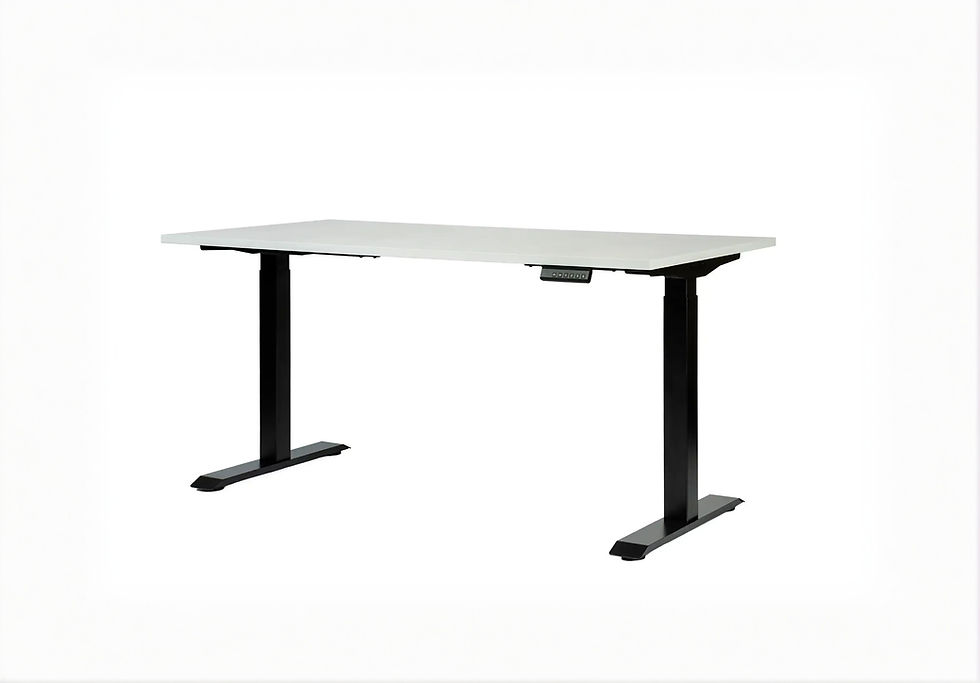
A fixed-height desk can make this worse because your chair position may change slightly from session to session. One day you sit higher, another day lower. The desk stays the same, but your arm angle changes. That can make your mouse movement feel different even with identical game settings.
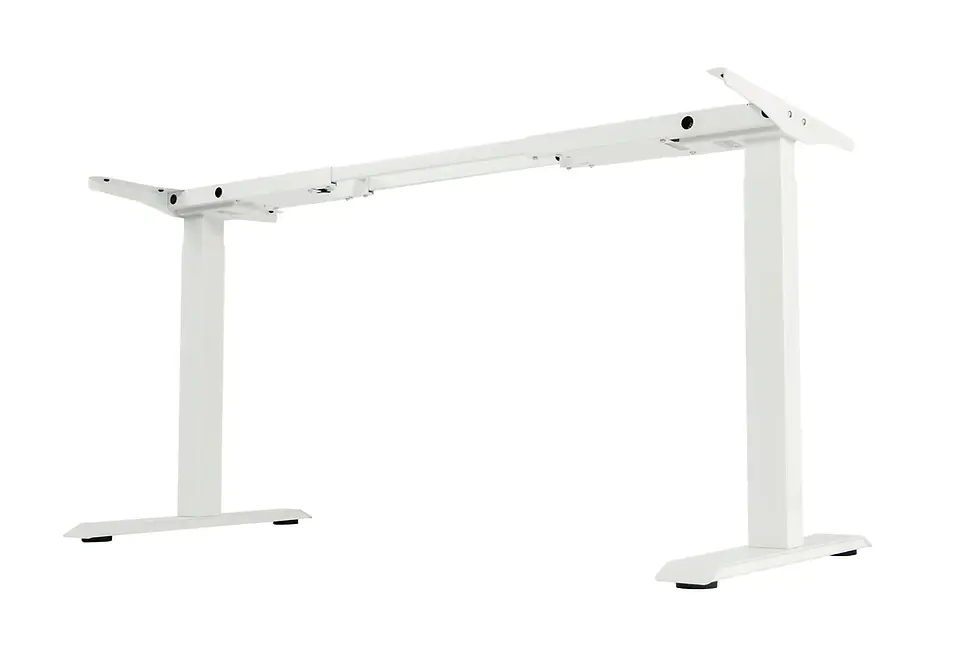
This is where adjustable desks become more than an office comfort feature. For FPS players, an adjustable desk helps lock in a repeatable arm position. You can set the desk height to match your chair, posture and aiming style instead of forcing your body to adapt to the furniture.
A better position usually means:
Shoulders relaxed, not raised
Elbows close to a natural 90-degree angle
Forearm lightly supported without excessive pressure
Wrist neutral, not sharply bent upward or downward
Mousepad placed where the arm can move freely
Desk height repeatable across sessions
This is where gaming ergonomics and performance overlap. A desk setup is not only about comfort. For FPS players, it affects repeatable movement.
If your desk height changes your shoulder position, it also changes how your mouse movement feels. That means your “muscle memory” is being built on an unstable base.
5. Your chair and armrest position change your mouse control
Your chair can change your aim more than you think.
If your seat height is different from yesterday, your elbow angle changes. If your armrests are too high, they can lift your shoulders. If they are too low, your forearm may collapse downward. If one armrest touches your aiming arm, it can block movement during wide flicks.
This is why some players feel great one day and awkward the next even when nothing in-game changed. They sit slightly differently.
FPS aiming is sensitive to body position. Your hand is not moving in isolation. It is connected to your wrist, forearm, elbow, shoulder and back. When your seating position changes, your mouse path changes too.
For better consistency, avoid treating the chair as random background furniture. Set it up the same way before serious sessions.
Check these points:
Seat height
Distance from desk
Backrest angle
Armrest height
Whether your aiming arm touches the armrest
Whether your feet are stable on the floor
Whether you lean forward more during intense matches
A good baseline is simple: feet stable, shoulders relaxed, elbows close to a natural angle and the aiming arm free enough to move without hitting the armrest.
If you use armrests, make sure they support posture without blocking your aiming range. Some players prefer the aiming arm free from the armrest during active play. Others use light support. There is no universal rule, but the position must be repeatable.
A good gaming chair or ergonomic chair does not automatically improve aim. But a stable sitting position makes it easier to aim the same way every session.
Consistency check: Before a ranked session, check whether your chair height and distance from the desk are the same as usual. If you start each session from a different body position, your mouse movement will not feel the same.
6. Your monitor position changes posture and focus distance
Monitor position affects more than visibility.
If your monitor is too low, too high, too far away or off-center, your posture changes. You may lean forward, raise your shoulders, tilt your neck or shift your body to one side. That changes how your arm sits on the desk and how your mouse movement feels.
For FPS players, the monitor should support a stable aiming posture. If you keep adjusting your body to see better, your mouse control will also change.
A practical starting point:
The top of the monitor should be around eye level or slightly below
The screen should be centered with your body
The distance should feel repeatable, not different every session
You should not need to lean forward to read targets or UI clearly
The monitor stand should not steal mousepad space
Poor monitor placement can create:
Forward head posture
Shoulder tension
Uneven arm pressure
Inconsistent distance from the screen
Bad focus during long sessions
Desk space problems if the stand is too large
This is why a monitor arm is not just for aesthetics. For FPS players, it helps lock in focal distance and screen position so your eyes and brain do not need to recalibrate every time you sit down.
It can also free up mousepad space. A large monitor stand can block the ideal mousepad area, especially on smaller desks.
A better monitor setup usually gives you:
More usable desk space
Better screen height
Easier distance adjustment
Cleaner cable routing
Less clutter around the mousepad
More repeatable posture
That directly supports FPS consistency because your body and eyes return to the same position more easily.
Consistency check: If you lean forward during every match, the monitor may be too far away, too low or too small for your position. Fixing the screen position can also fix part of your aiming posture.
Hardware and layout problems: when your setup gets in the way
7. Your mousepad is too small for your sensitivity
A small mousepad can make your aim feel inconsistent because it forces you to adapt mid-fight.
This is especially common for low-sensitivity FPS players. If your pad does not give enough movement space, you start lifting the mouse too often, running into the pad edge or changing how you move during pressure moments.
A mousepad that is too small can cause:
Interrupted tracking
Panic lifting during close fights
Inconsistent flick distance
Bad posture because you avoid the pad edge
Higher tension because you know space is limited
This does not mean every player needs the largest mousepad possible. But the pad must match your sensitivity and playstyle.
Low-sensitivity arm aimers usually benefit from more horizontal space. Hybrid aimers need enough room for both arm movement and wrist corrections. High-sensitivity players may not need as much space, but still need a consistent surface for micro-adjustments.
The key question is not “Is this mousepad big?”The better question is:
“Can I make my normal in-game movements without changing my technique because the pad ends?”
If the answer is no, your mousepad is part of the problem.
This is also why desk size matters. A large mousepad does not help if your keyboard, monitor stand, cable clutter or desk accessories steal the space your aiming arm needs.
8. Your cable, dongle or charging setup adds micro-friction
Even small cable resistance can affect aim.
Wired mice can still perform extremely well, but cable drag can create uneven movement if the cable pulls from the wrong angle, catches behind the desk or rubs against other accessories. A mouse bungee, better cable routing or enough free cable length can reduce this problem.
Wireless mice solve some of this, but they introduce other setup details. A poorly placed receiver, low battery, bad charging habits or messy desk layout can still create problems.
For wireless gaming mice, the receiver should usually be close to the mousepad, not hidden far behind the PC case or under the desk. A rough practical guideline is to keep the dongle or receiver within about 20–30 cm of the mouse when possible, ideally with clear line-of-sight or an included extender.
This is not about chasing imaginary latency problems. It is about reducing avoidable signal instability and keeping the setup repeatable.
For wireless gaming mice, think about:
Receiver distance
USB dongle placement
Battery routine
Charging cable access
Desk clutter around the mousepad
Whether the mouse has enough free movement space
A great mouse should disappear in your hand during play. If you can feel cable pull, clutter, charging stress or receiver problems, the setup is not finished.
This is where PC accessories become part of performance. USB hubs, cable management, mouse bungees, desk mats and proper peripheral placement may not sound exciting, but they reduce the small interruptions that make aim feel inconsistent.
Consistency check: If a wireless mouse includes a receiver extender, use it on the desk instead of plugging the dongle into the back of the PC. Keep the receiver close, stable and away from unnecessary cable mess.
9. Your setup is cluttered, unstable or too cramped
A cramped setup makes consistent aim harder.
If your keyboard is too close to your mouse area, your monitor stand takes too much space, your cables cross the pad, or your desk accessories are placed randomly, your aiming arm has to adapt constantly.
The best FPS setups are usually simple, not overloaded. The mousepad has enough space. The keyboard is angled or positioned in a way that does not block the mouse. The monitor is centered. Cables are controlled. The chair and desk height stay repeatable.
A cluttered gaming desk can cause:
Restricted mouse movement
Uneven arm position
Cable interference
Bad posture
Poor monitor distance
More distractions
Less repeatable setup habits
This is why “desk accessories” should not mean decorative objects only. The useful ones solve friction, space, posture or organization problems.
For FPS players, the best desk accessories are usually practical:
Large mousepad or desk mat
Monitor arm
Cable management
Mouse bungee for wired setups
Headset stand or storage
Desk shelf only if it does not reduce mouse space
Proper lighting that does not create screen glare
Chair and desk adjustments that support posture
The goal is not to make the desk look expensive. The goal is to make the setup repeatable.
How to diagnose the problem before buying new gear
Instead of upgrading randomly, diagnose the type of inconsistency first.
If your mouse feels slow, sticky or muddy
Start with the surface.
Check the mousepad, skates, dust, humidity and arm drag. Clean the pad, test another surface if possible and inspect the mouse skates before blaming the mouse.
Most likely causes:
Dirty or worn mousepad
Worn PTFE skates
Arm drag
Pad/skate mismatch
Sleeve friction or desk edge pressure
Best upgrade direction:
Better mousepad
Replacement skates
Gaming sleeve
Smoother desk surface or better desk edge comfort
If your shoulder, wrist or forearm feels tense
Start with ergonomics.
A lighter mouse will not fix a desk that is too high or a chair that puts your arm in the wrong position.
Most likely causes:
Desk too high
Chair too low
Armrests blocking movement
Forearm pressing into desk edge
Monitor position forcing forward lean
Best upgrade direction:
Adjustable desk setup
Better chair adjustment
Monitor arm
More comfortable arm position
Cleaner desk layout
If you keep running out of mouse space
Start with layout.
You may not need a new mouse. You may need more usable surface area.
Most likely causes:
Mousepad too small
Keyboard too close
Monitor stand taking space
Cable clutter
Desk too narrow or overcrowded
Best upgrade direction:
Larger mousepad
Better keyboard angle
Monitor arm
Cable management
More open desk surface
If your aim feels good some days and terrible other days
Start with repeatability.
This is usually not one single problem. It is often several small changes stacked together.
Most likely causes:
Chair height changes
Pad condition changes
Arm friction changes
Monitor distance changes
Cable or receiver position changes
Desk clutter changes
Best upgrade direction:
Repeatable desk and chair height
Stable monitor position
Clean mousepad routine
Consistent cable/wireless setup
Same mousepad and sleeve conditions each session
The consistency starter pack: what to fix first
If you want a practical upgrade path, think in terms of the problem you are solving.
If you are ready to build the full setup instead of diagnosing one issue at a time, use the best FPS gaming mouse setup guide to match your mouse, mousepad, skates, desk height and peripherals properly.
For surface consistency
Look at:
Gaming mousepad
Replacement skates
Gaming sleeve
Mouse that fits your grip and weight preference
Useful if your mouse feels sticky, slow, too fast or different across the pad.
For posture consistency
Look at:
Adjustable desk
Ergonomic or gaming chair
Monitor arm
Foot support if needed
Useful if your shoulder, wrist or forearm feels tense during long sessions.
For layout consistency
Look at:
Larger desk mat or XL mousepad
Cable management
USB hub or receiver extender placement
Headset stand
Monitor arm
Cleaner keyboard/mouse layout
Useful if your mouse movement is interrupted by clutter, cables or lack of space.
This is where the full setup matters. FPS consistency does not come from one perfect product. It comes from the mouse, pad, desk, chair, monitor and accessories working together.
For setup-focused upgrades, you can explore gaming mice, mousepads and PC accessories or FPS-focused gaming peripherals based on the exact problem you are trying to solve.
When is the mouse actually the problem?
Sometimes the mouse really is the issue.
A gaming mouse may be wrong for you if:
The shape does not match your grip
The weight does not fit your sensitivity
The side buttons interfere with your grip
The coating feels slippery
The clicks feel too stiff or too light
The sensor position feels unusual
The mouse is too wide, too narrow, too tall or too flat
The battery balance feels strange in wireless use
But you should only judge the mouse after checking the setup around it. Many players replace a good mouse because the mousepad is worn, the desk is too high or the arm is dragging.
If you are choosing a new FPS mouse, compare grip, weight, shape and playstyle together. The best mouse for claw grip is not always the best mouse for palm grip. The best ultra-light mouse is not always best for every player either.
For deeper guidance, read:
The real reason your aim feels different every day
The real reason is usually not one dramatic problem. It is a stack of small inconsistencies.
Your mousepad is slightly dirty.Your arm is dragging more than yesterday.Your chair is a little lower.Your shoulder is tense.Your monitor position makes you lean forward.Your cable touches the edge of the pad.Your keyboard blocks your mouse space.Your desk setup is not repeatable.
Each issue is small. Together, they change how your aim feels.
This is why competitive FPS setups should be built around repeatability. The player should sit the same way, move the same way and have the same amount of space every session.
The best setup does not magically improve your aim overnight. It removes the physical problems that make good aim harder to repeat.
Before changing sensitivity again, check the setup
Sensitivity changes can help when your current setting truly does not match your aim style. But if the real problem is friction, posture, desk height or mousepad space, changing sensitivity can hide the issue instead of solving it.
Before adjusting settings again, check the physical setup:
Is the mousepad clean and consistent?
Is your arm moving freely?
Is your desk height comfortable?
Is your chair position repeatable?
Do you have enough mouse space?
Are the skates still smooth?
Is the monitor placed correctly?
Is the cable or receiver setup clean?
Is your desk layout stable?
If those basics are wrong, even the best mouse can feel bad.
A consistent aim setup is not only about buying better gear. It is about removing the small physical problems that make your aim feel different every day.
FAQ
Why does my FPS aim feel different every day?
Your FPS aim can feel different every day because the physical setup around your mouse changes. Mousepad friction, arm drag, posture, desk height, chair position, monitor distance, skates and cable tension can all affect how your mouse movement feels.
Can a mousepad really affect FPS aim?
Yes. A mousepad affects glide speed, stopping power, micro-adjustments and tracking smoothness. A dirty, worn or badly matched mousepad can make the same mouse feel slower, faster or less predictable.
Why does my gaming mouse feel slow sometimes?
Your gaming mouse may feel slow because of mousepad dust, humidity, sweat, worn skates, arm drag or cable resistance. The mouse itself may be fine, but the surface and setup around it can create extra friction.
Should I change sensitivity if my aim feels inconsistent?
Not immediately. First check your mousepad, desk height, chair position, arm movement and mouse space. If your physical setup is inconsistent, changing sensitivity may only create more confusion.
Does desk height matter for FPS aim?
Yes. Desk height affects shoulder tension, wrist angle and forearm pressure. If the desk is too high or too low, your mouse movement can feel tense or unstable during long FPS sessions.
What is the best desk height for gaming aim?
A good starting point is a desk height where your shoulders stay relaxed and your elbows sit at roughly a 90-degree angle when your forearms reach the desk. If you need to shrug or reach upward, the desk is probably too high.
Is arm drag bad for FPS aim?
Arm drag can be bad if it creates inconsistent friction between your forearm, sleeve, desk or mousepad. It can make tracking feel jerky and flicks feel heavier than expected.
Do gaming sleeves help with aim?
Gaming sleeves can help if your forearm sticks to the mousepad or desk. They are most useful for players who use low sensitivity, large arm movements or long FPS sessions where sweat and friction change how the arm glides.
Do mouse skates improve aim?
Mouse skates can improve glide consistency if your current skates are worn, scratched or badly matched with your mousepad. However, faster skates are not always better. The best choice depends on your pad, sensitivity and control preference.
How close should a wireless mouse receiver be?
A practical guideline is to keep the wireless receiver or dongle close to the mousepad, often within about 20–30 cm of the mouse if possible. Using the included receiver extender on the desk is usually better than hiding the dongle behind the PC.
What should I upgrade first for better FPS consistency?
Start with the mousepad if glide feels inconsistent. Check desk and chair height if your arm feels tense. Consider a new mouse only if the shape, weight or grip fit is clearly wrong for your hand and playstyle.
Are desk accessories useful for gaming performance?
Yes, if they solve real setup problems. Monitor arms, cable management, large mousepads, mouse bungees and proper desk organization can improve space, posture and movement consistency.



















Comments