
Best Monitors for Home Office Productivity in 2026 — Work Smarter, Not Harder
Updated: Dec 21, 2025

A good monitor isn’t just a screen. In a home office, it’s your main “window” into work: emails, documents, spreadsheets, video calls, design tools and everything in between. The wrong monitor can leave you squinting, scrolling endlessly or constantly rearranging windows. The right one helps you work faster, stay focused and feel less tired at the end of the day.
In 2026, you don’t need a gaming monster or ultra-expensive display to be productive. You need a monitor that’s sized for your workspace, tuned for clarity and comfort, and set up correctly on your desk.
This guide walks through the key things that actually matter for home office productivity and explains what to look for when choosing a monitor.
What Makes a Monitor “Productive” for Home Office Use?
A productive monitor is one that lets you:
see more at once (less constant switching and scrolling)
read text easily without eye strain
organise multiple windows comfortably
sit in a natural, ergonomic posture
Whether you’re writing, analysing data, designing or joining endless video calls, a productivity monitor should support clarity, comfort and multitasking.
Ideal Monitor Size for Home Office Productivity
The best monitor size depends on:
your desk depth and width
how far you sit from the screen
how many windows you need open at once
In most home offices, the sweet spot is:
27” for compact desks
27”–32” for standard setups
34” ultrawide for heavy multitasking
24” Monitors — Still Okay, but Limited
24-inch monitors work for very small desks or occasional use, but they feel cramped if you:
work with spreadsheets
compare documents side by side
use complex software with lots of panels
If you can, consider 27” as your baseline.
27” Monitors — The Productivity Standard
27-inch monitors are often ideal because:
they provide a great balance of size and desk space
1440p or 4K resolution looks sharp at typical viewing distances
you can have two documents or browser windows side by side comfortably
For most home office workers, a 27” monitor is the most efficient step up from a laptop screen.
32” Monitors — More Space, More Planning
A 32” monitor is fantastic for:
large spreadsheets
timeline-based work (video, audio)
multi-window multitasking
But you need:
enough desk depth (ideally 70–80 cm or more)
a good monitor arm or stand to position it correctly
If the monitor is too close, your neck and eyes will work harder than they should.
34” Ultrawide — One Screen, Many Windows
A 34” ultrawide (typically 21:9) gives you:
similar height to a 27” monitor
extra width for 3–4 apps side by side
Perfect for:
people who love multitasking
managing communication windows (chat, email, calls) alongside main work
replacing a dual-monitor setup with one cleaner, curved screen
Resolution: 1080p vs 1440p vs 4K for Home Office Work
Resolution affects both clarity and how much you can fit on screen.
1080p (Full HD)
Acceptable at 24”
Starts to look soft at 27” when you’re close
Not ideal for detailed text work on large screens
1440p (QHD, 2560×1440)
Excellent balance of sharpness and performance
Ideal at 27” (and still good at 32”)
Great for all-day reading and editing
4K (3840×2160)
Ultra-sharp, especially at 27–32”
Fantastic for text, design and detailed work
Requires proper scaling settings so text isn’t tiny
Demands a bit more from your computer, but modern laptops handle it well for office tasks
For pure productivity, 1440p at 27” is often the best value.
If you want maximum clarity and plan to keep the monitor for many years, 4K is a very future-proof choice.
Panel Types: IPS, VA, OLED — Which Is Best for Office?
Panel technology changes how colours look, how wide the viewing angles are and how well the monitor handles contrast and motion.
IPS (In-Plane Switching)
The most common choice for productivity
Great viewing angles
Good colour accuracy
Ideal for office work, creative tasks and shared viewing
In most cases, an IPS monitor is the safest and most comfortable bet for home office use.
VA (Vertical Alignment)
Higher contrast (deeper blacks) than IPS
Can have slightly narrower viewing angles
Good for mixed use (work + movies, some gaming)
VA can be a good choice if you like richer contrast and work straight-on.
OLED (New but Growing)
Perfect blacks and stunning contrast
Great for creative work and media
More expensive
Risk of image retention if static content stays on screen for very long periods
For typical home office work, IPS is more than enough. OLED is nice to have, not a necessity.
Refresh Rate: Do You Need 144 Hz for Productivity?
For office work, you don’t need ultra-high refresh rates like 240 Hz.
However, using a 75 Hz or 100–144 Hz monitor can make:
scrolling
window dragging
cursor movement
feel smoother and more responsive, especially if you’re sensitive to motion.
If you also play games in your downtime, a 75–144 Hz monitor is a great hybrid choice.
Connectivity: USB-C, HDMI, DisplayPort and Hubs
Modern monitors can simplify your whole desk setup by acting as a docking station.
USB-C with Power Delivery
If a monitor has USB-C with Power Delivery:
a single cable can deliver video, data and laptop charging
you can close your laptop and work from one clean setup
cable management becomes much easier
For home office productivity in 2026, USB-C is one of the most valuable features you can get.
USB Hubs
Some monitors include:
USB-A ports
network ports
headphone output
This reduces the number of extra dongles and hubs on your desk.
Ergonomics: Height, Tilt, Distance and Monitor Arms
A perfect monitor with a bad setup is still a bad experience.
Key ergonomic principles:
Top of the screen should be at or slightly below eye level
You should sit roughly an arm’s length away from the screen
The screen should be directly in front of you, not off to the side
Tilt should prevent you from bending your neck up or down for long periods
Why a Monitor Arm Helps Productivity
A monitor arm allows you to:
fine-tune height and distance
quickly adjust between sitting and standing (with a standing desk)
pull the screen closer for detail work, then push it back for overview work
free up desk space beneath the screen
This flexibility reduces neck and eye strain and encourages you to move more — which directly supports sustained productivity.
Single vs Dual Monitor vs Ultrawide for Home Office
Choosing between a single screen, dual monitors, or an ultrawide display depends heavily on how you work and how you organize tasks.
Single Monitor Setup
Best for:
minimalists
small desks
simple workflows
Choose a 27–32” monitor with good resolution and ergonomics.
Dual Monitor Setup
Best for:
heavy multitaskers
keeping reference material on one screen and main work on another
Pros:
easy drag-and-drop between screens
can mix sizes (e.g. main 27” plus secondary portrait monitor)
Cons:
more cables
more space required
more bezel gaps between windows
Ultrawide Monitor Setup
Best for:
replacing dual monitors with one seamless screen
timeline-based work
lots of side-by-side windows
Pros:
no bezel gap
clean, single-stand or single-arm solution
feels immersive, but still great for work
Cons:
needs a wider desk
some apps don’t handle extreme widths perfectly (but this is improving)
Monitors That Support Productivity Habits
Beyond specs, think about how a monitor supports healthy working habits:
room for large, readable text so you don’t lean in
enough width for task + communication side by side
flexible positioning to encourage sitting back, keeping shoulders relaxed
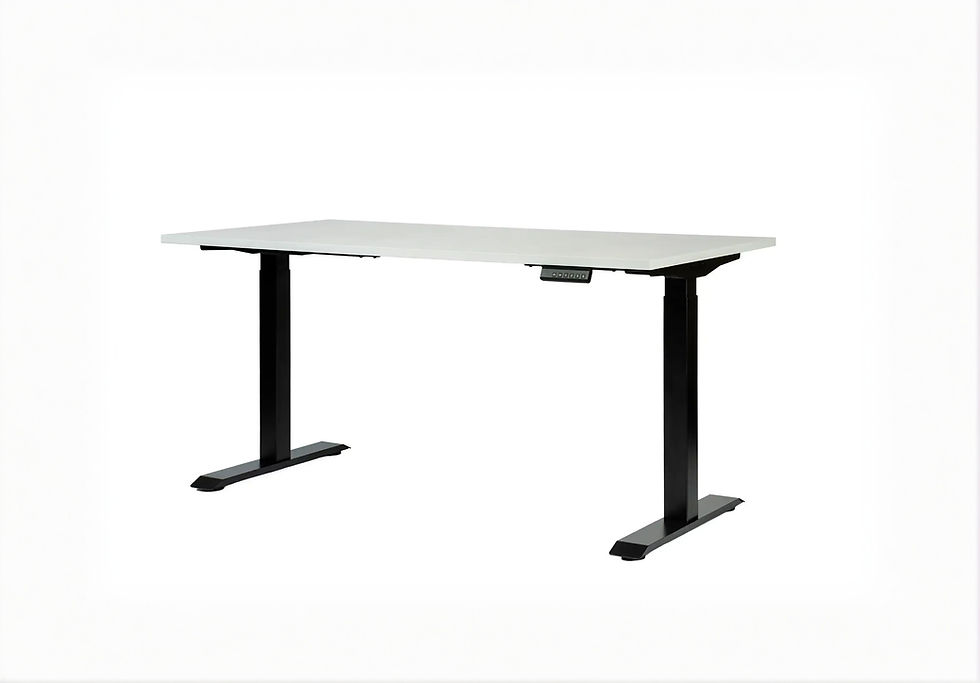
pairing with a standing desk so posture varies through the day
Small improvements in comfort stack into big gains in focus and consistency over months and years.
Checklist: Choosing the Best Monitor for Your Home Office in 2026
When selecting your next monitor, run through this checklist:
Size:
27” for most desks
27–32” for larger desks
34” ultrawide for heavy multitasking
Resolution:
1440p or 4K for clarity
avoid 1080p above 27” if you care about text sharpness
Panel Type:
IPS for general productivity
VA if you want stronger contrast
OLED only if your budget allows and your use is mixed (work + media)
Refresh Rate:
60–75 Hz is enough for work
consider 100–144 Hz if you also game or want extra smoothness
Connectivity:
USB-C with Power Delivery is a big plus
built-in USB hub simplifies peripherals
Ergonomics:
height-adjustable stand or monitor arm
easy tilt and swivel
suitable for your standing or sit-stand desk
Desk Fit:
check depth, width and cable routing
think through where your keyboard, mouse and laptop will go
Exploring the full range of monitors and monitor arms makes it easier to match your workspace, desk size, and workflow needs without compromises.
FAQ — Best Monitors for Home Office Productivity in 2026
1. What size monitor is best for home office productivity?
For most people, a 27-inch monitor is the best starting point. It offers enough space for multitasking without overwhelming smaller desks. If you have more space, a 32” or 34” ultrawide can be even more productive.
2. Is 4K worth it for home office work?
Yes, if you value sharp text and plan to keep the monitor for several years. 4K is excellent for reading and detailed work, but a good 1440p monitor at 27” is still a fantastic productivity choice.
3. Should I get a curved monitor for work?
Curved monitors can improve immersion and comfort, especially with ultrawide screens. For typical work tasks, a gentle curve can feel natural, but it’s not mandatory. On smaller flat 27” screens, a curve is less important.
4. Is one monitor or two better for productivity?
It depends on your workflow. One large monitor (27–34”) works for most people. Dual monitors are great if you constantly compare documents or monitor multiple apps. An ultrawide can deliver the benefits of two screens in one.
5. Do I need a monitor arm for productivity?
You don’t need one, but a monitor arm can significantly improve ergonomics and flexibility. It makes it easier to set the correct height, adjust for sitting or standing and free up desk space.

















Comments