
Best Monitors for Eye Comfort & Reduced Eye Strain in 2026 — Work Longer With Less Fatigue

If you spend hours in front of a screen, eye strain becomes a real productivity problem. The best eye-friendly monitors in 2026 reduce fatigue using flicker-free backlighting, low blue light modes, and panels that keep text sharp and stable throughout long work sessions.
But not every monitor marketed as “eye comfort” actually improves daily use. If you’re comparing real options, browsing eye-friendly monitors designed for long work sessions helps you understand how specs translate into actual comfort.Panel type, brightness control, contrast stability, screen size, and resolution all influence how your eyes feel after 6–8 hours.
This guide breaks down what truly matters in 2026 — whether you work with documents all day, edit content, or game after hours — and shows how to choose a screen that reduces strain without sacrificing clarity.
This guide explains the key features that matter, the ideal sizes and resolutions for strain-free work, and how to set up your monitor for maximum comfort.
Quick Answer: What Makes a Monitor Eye-Friendly in 2026?
An eye-friendly monitor should include flicker-free backlighting, effective low blue light modes, stable brightness control, and a panel that keeps text sharp at normal viewing distances. For long office sessions, 24–27" IPS panels at 1440p are often the most comfortable balance.
Why Eye Comfort Matters More Than Ever
Prolonged computer use can cause:
dry, irritated eyes
headaches
blurred vision
difficulty focusing
shoulder and neck tension
Most of this is preventable with the right monitor and the right ergonomics.
1. Choose the Right Monitor Size for Eye Comfort
Monitor size is directly connected to viewing distance and posture.
24-inch monitors
fine for compact spaces
text can feel small at higher resolutions
not ideal for heavy daily work
27-inch monitors (the comfort sweet spot)
larger text without scaling
easier on the eyes during long hours
ideal for reading, editing and multitasking
32-inch monitors
great for spreadsheets and large documents
require proper distance (70–80 cm)
excellent when paired with a properly adjusted monitor arm for ergonomic positioning
34-inch ultrawide monitors
excellent for multitasking without squinting
wider field of view reduces window switching
curvature reduces eye movement fatigue
A larger screen does NOT automatically mean more strain — when positioned correctly, larger monitors reduce the need to lean forward.
2. Resolution and Pixel Density: Sharper Text = Less Eye Fatigue
Text clarity is one of the biggest contributors to eye comfort.
1080p
acceptable at 24”
too soft at 27”+ → increases strain
1440p (QHD)
ideal for 27”
crisp, clear text
professional comfort without the cost of 4K
4K (UHD)
extremely sharp
excellent for reading, design, coding
best at 27–32”
Higher resolution = finer text edges = less micro-focusing effort = reduced fatigue.
In real setups, choosing a monitor with the right resolution and size matters more than chasing specs — especially when comparing monitors optimized for office work and productivity.
3. Panel Type and Eye Comfort
Panel type plays a major role in viewing comfort, text clarity, and how consistent the image looks across the screen.
IPS (Best for eye comfort)
wide viewing angles
consistent colors
excellent for reading and general work
very stable across the entire screen
VA
higher contrast
slightly narrower viewing angles
fine for mixed use
OLED
perfect blacks, high contrast
incredible comfort for text and dark themes
may be too expensive for simple office tasks
IPS remains the most eye-friendly option for daily productivity. Most modern IPS monitors for work and long hours are designed specifically for stability and visual comfort across extended sessions.
4. Brightness, Glare and Anti-Reflection Coating
Brightness
250–300 nits → ideal for most home offices
too bright = eye fatigue
too dim = squinting
Matte (anti-glare) coating
Essential for eye comfort, especially in bright rooms. Glossy monitors increase reflections → more strain.
Uniformity
Uneven brightness = constant micro-adjustments by your eyes.
5. Flicker-Free Backlight — A Must in 2026
Older monitors used PWM (pulse-width modulation), which creates invisible flicker.
This flicker causes:
headaches
fatigue
eye pressure
Most modern monitors use flicker-free technology, and it is non-negotiable for eye comfort.
Always check: “Flicker-Free” certification.
6. Low Blue Light Modes (Hardware-Level Only)
Blue light doesn’t “damage” eyes, but it increases strain and disrupts sleep rhythms.
Hardware-based low blue light filtering is far better than software filters or yellow screen overlays.
Modern monitors offer:
Low Blue Light Mode
EyeSafe Certification
Reading Mode
Paper Mode
Use these for night work or long sessions.
7. Refresh Rate and Eye Comfort
Even for work (not gaming), refresh rate affects comfort.
60 Hz
Standard, fine for most tasks.
75–100 Hz
Feels smoother, reduces micro-strain when scrolling.
120–144 Hz
Luxury for productivity, amazing for hybrid work + gaming.
Smoother motion = less visual fatigue.
8. Ergonomics: Distance, Height & Monitor Arms
Even the best monitor will strain your eyes if positioned incorrectly, especially during long, productivity-focused workdays.
Ideal setup:
Eye level aligned with the top third of the screen
Sitting one arm’s length away
Slight downward tilt (5–15 degrees)
Centered directly in front of you
Why a monitor arm helps:
perfect control of distance
perfect height for sitting + standing
reduces neck tension → reduces eye strain
frees desk space
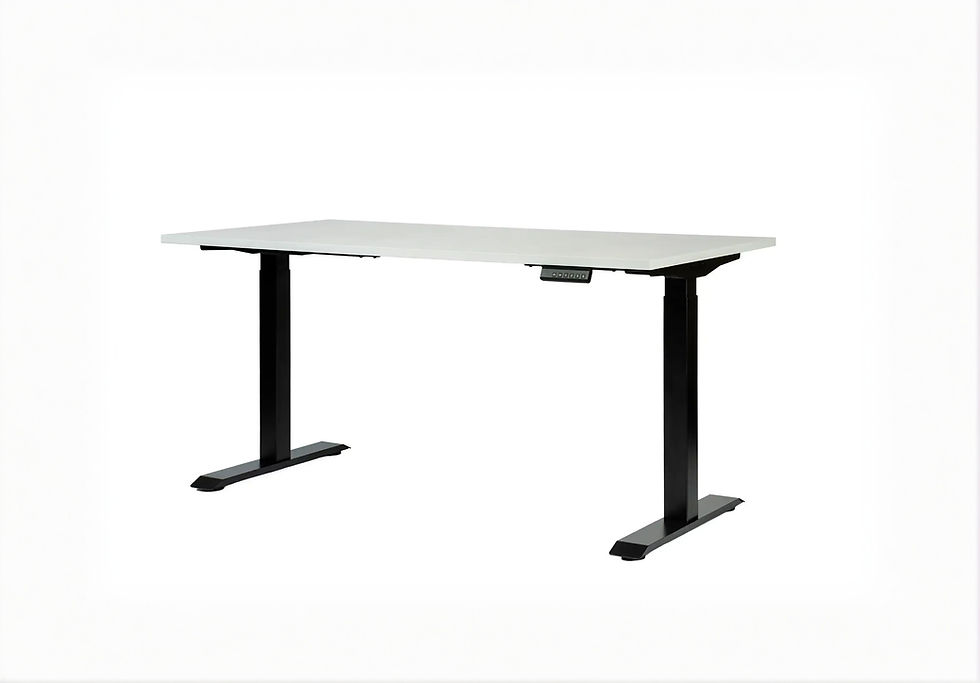
Ergonomics and monitor choice always work together. Knowing the which ergonomic desk accessories are necessary for your workplace is important.
9. Curved vs Flat Monitors for Eye Comfort
Curved monitors (1000R–1800R):
reduce horizontal eye movement
keep edges at the same distance as the center
feel more natural for ultrawide screens
Ideal for:
34-inch ultrawide
49-inch super ultrawide
Flat monitors:
perfect for 24–32” sizes
no distortion for design or detailed work
10. Recommended Specifications for Eye Comfort (2026)
For general office work:
27” 1440p IPS
Low Blue Light
Flicker-free
Matte coating
75–100 Hz
For long hours of reading/coding:
27” 4K IPS
High pixel density
Monitor arm for perfect distance
For multitasking:
34” ultrawide 1440p
Gentle curve (1500R–1800R)
Matte anti-glare
For creatives:
27–32” 4K IPS or OLED
Excellent uniformity
High color accuracy
Building a comfortable workspace requires both the right screen and proper positioning. Explore:
• High-quality monitors for productivity and eye comfort
• Adjustable monitor arms for ergonomic setups
• Essential ergonomic desk accessories
What Screen Size Is Most Comfortable for Long Workdays?
For most users, 24" to 27" monitors provide the most comfortable balance between screen real estate and eye movement. Larger screens increase head and eye travel distance, which can cause fatigue over time if viewing distance isn’t adjusted properly. At typical desk depth (60–80 cm), 27" with 1440p resolution often offers the best clarity-to-size ratio for text-heavy work.
Does Resolution Affect Eye Strain?
Yes. Higher resolution improves text sharpness and reduces jagged edges, making documents easier to read for long periods. 1440p on a 27" display generally delivers noticeably clearer text compared to 1080p. However, very high resolutions like 4K on small screens may require scaling adjustments, which can sometimes reduce interface clarity if not configured properly.
Eye comfort is also affected by the full workspace. If tiredness builds through the afternoon, read our guide to desk setup fatigue.
IPS vs VA: Which Panel Is Better for Eye Comfort?
IPS panels typically provide more stable colors and clearer text at different viewing angles, which makes them popular for office work. VA panels offer higher contrast but may show slight text softness depending on implementation. For long reading sessions and document work, IPS is often the more comfortable choice.
What Monitor Should You Actually Choose for Eye Comfort in 2026?
Choosing the right monitor depends on how you work — not just the specifications.
Here’s a simple breakdown:
• Best overall: 27” 1440p IPS (daily work + comfort)
• Best for long reading sessions: 27–32” 4K IPS
• Best for multitasking: 34” ultrawide with gentle curve
• Best for hybrid work + gaming: 27” 144Hz IPS
If you’re upgrading your setup, explore monitors designed for productivity and eye comfort to compare sizes, resolutions and ergonomic features.
Final Recommendation: Best Setup for Eye Comfort
24–27" screen size for desk setups
1440p resolution for sharp text
IPS panel for clarity and viewing stability
Flicker-free and low blue light support
For most office users, a 27" 1440p IPS monitor delivers the most balanced long-term comfort.
FAQ — Best Monitors for Eye Comfort (2026)
1. What monitor size is best for reducing eye strain?
27-inch monitors are ideal for most users — large enough for comfortable reading without forcing you to sit too close.
2. Is 4K better for eye comfort?
Yes. Higher pixel density creates sharper text and reduces focusing effort.
3. Do curved monitors reduce eye strain?
Yes, especially ultrawides. The curve brings the edges closer, reducing eye movement and distortion.
4. Which panel type is easiest on the eyes?
IPS panels offer the most consistent and comfortable viewing experience.
5. Can a monitor arm reduce eye strain?
Absolutely. Positioning the monitor at the correct height and distance is essential for maintaining healthy posture and reducing fatigue.



















Comments