
How to Build a Professional Video Call Setup at Home (2026)
Updated: Dec 22, 2025

Why a professional video call setup matters in 2026
In 2026, video calls are no longer “just meetings.” They’re interviews, sales calls, client presentations, internal reviews, webinars, and even recorded content. The way you look and sound on camera directly affects how professional, trustworthy, and prepared you appear.
A professional video call setup doesn’t mean turning your home into a studio. It means combining the right camera position, lighting, audio, and background so your image is clear, stable, and distraction-free — without unnecessary complexity.
This guide walks you step by step through building a clean, professional video call setup at home, whether you work remotely full-time or just want to look better on important calls.
What “professional” really means for video calls
A professional setup is not about flashy gear. It’s about consistency and clarity.
A good setup should:
Make your face evenly lit and easy to see
Keep your camera at eye level for natural eye contact
Deliver clear audio without echo or background noise
Eliminate visual distractions behind you
Work reliably every day without constant adjustments
If any one of these elements is weak, the whole setup feels amateur — even if the rest is good.
Step 1: Choose the right camera (and place it correctly)
Webcam vs camera — what you actually need
For most people in 2026, a good webcam is more than enough for professional video calls. Modern webcams handle exposure, focus, and color well — especially with proper lighting.
A mirrorless or DSLR camera makes sense if:
You present or stream frequently
You want shallow depth of field
You already own compatible gear
For daily work calls, reliability matters more than cinematic quality.
(Internal link opportunity: Best Webcams for Home Office & Professional Video Calls in 2026 / Webcam vs Mirrorless Camera for Video Calls & Streaming (2026))
Camera height and framing (this matters more than resolution)
The biggest mistake people make is placing the camera too low or too high.
Correct setup:
Camera at eye level
Lens centered with your face
Head and shoulders visible
Small amount of space above your head
This creates natural eye contact and avoids the “looking down” or “looking up” effect that instantly looks unprofessional.
Step 2: Lighting — the biggest quality upgrade
Use one good key light first
If you do only one thing to improve your setup, fix the lighting.
A single key light:
Placed slightly above eye level
Positioned 30–45° from the camera
Set to daylight (5000–5600K)
This alone can make an average webcam look excellent.
(Internal link opportunity: Best Lighting for Video Calls, Streaming & Home Office in 2026)
Avoid these common lighting mistakes
Window or bright light behind you
Overhead ceiling light as the main source
Mixed warm and cool lights
Light placed below face level
Lighting should shape your face, not flatten it or create shadows.
Step 3: Audio — clarity beats volume
Why audio matters more than video
People will tolerate average video quality, but they won’t tolerate bad audio. Echo, background noise, or muffled sound instantly reduces professionalism.
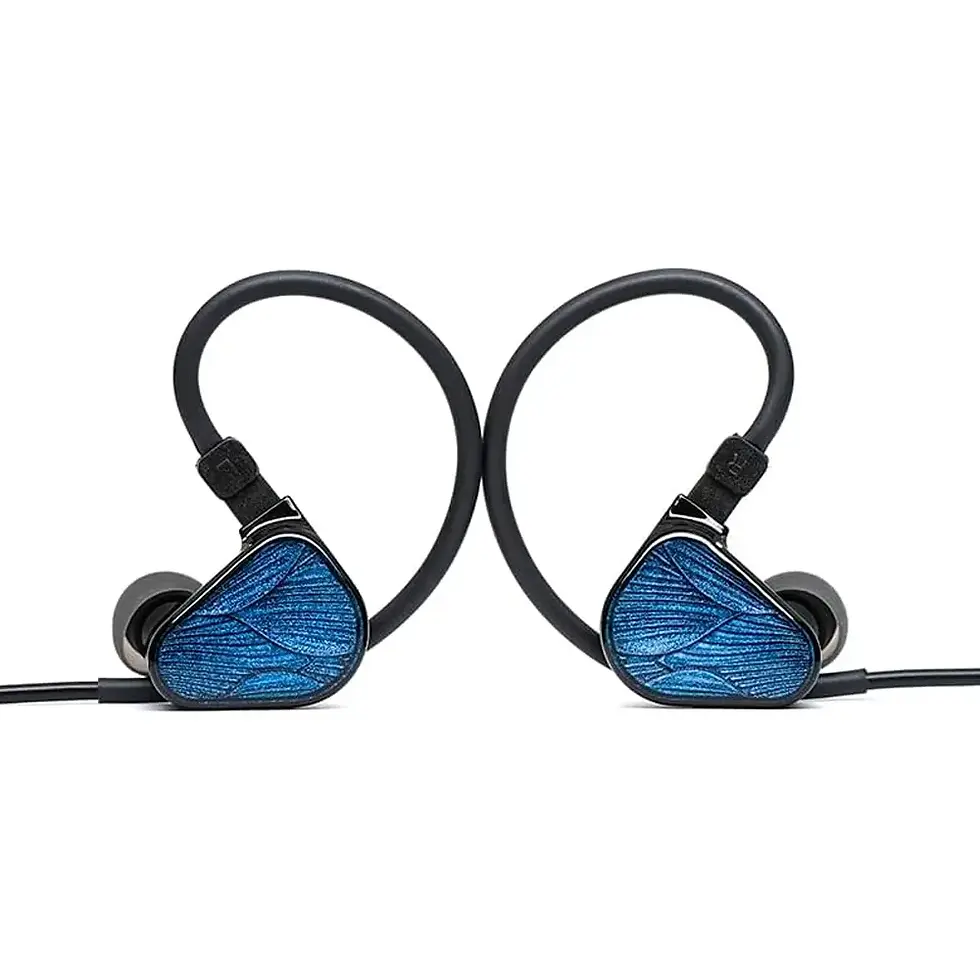
Best audio options for home setups
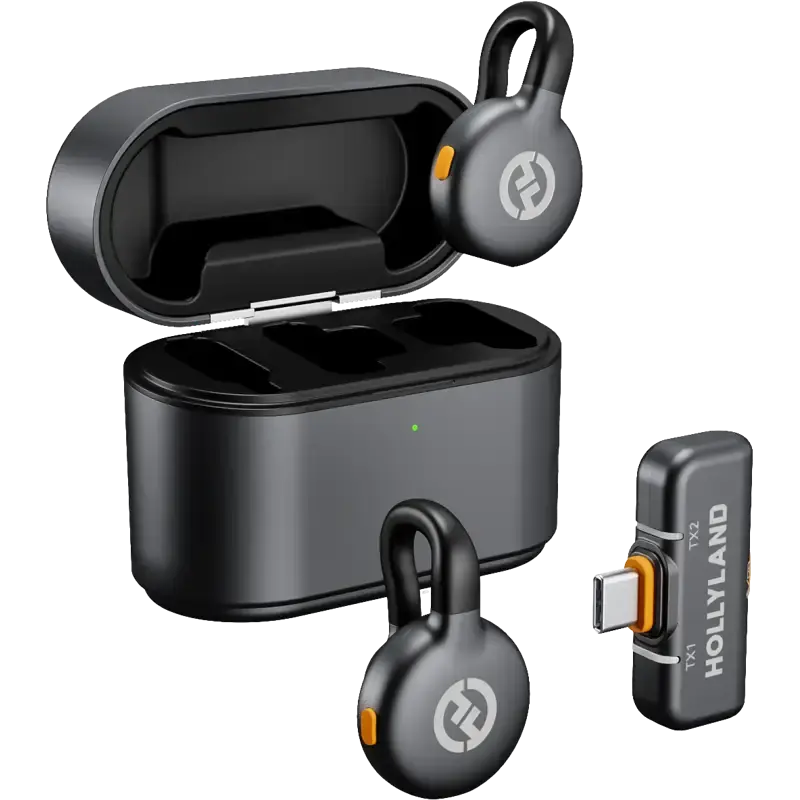
USB microphone (desk or boom arm)
Headset with quality mic
Compact desktop mic with cardioid pickup
Avoid relying on laptop microphones unless there’s no alternative.
(Internal link opportunity: Streaming & Podcast Equipment cluster)
Microphone placement basics
Position the mic close to your mouth
Keep it slightly off-axis (not directly in front)
Reduce room echo with soft furnishings if possible
Good mic placement often matters more than the mic itself.
Step 4: Background — clean beats impressive
What your background says about you
Your background doesn’t need to be fancy. It needs to be intentional.
Best background options:
Plain wall with neutral color
Minimal shelves or plants
Subtle depth (you slightly separated from the wall)
Avoid clutter, bright windows, or moving elements behind you.
Real background vs virtual background
Virtual backgrounds have improved, but they still struggle with hair edges, motion, and lighting inconsistencies.
Use a real background if you can. If you must use virtual:
Ensure strong, even lighting
Avoid complex patterns
Keep movements minimal
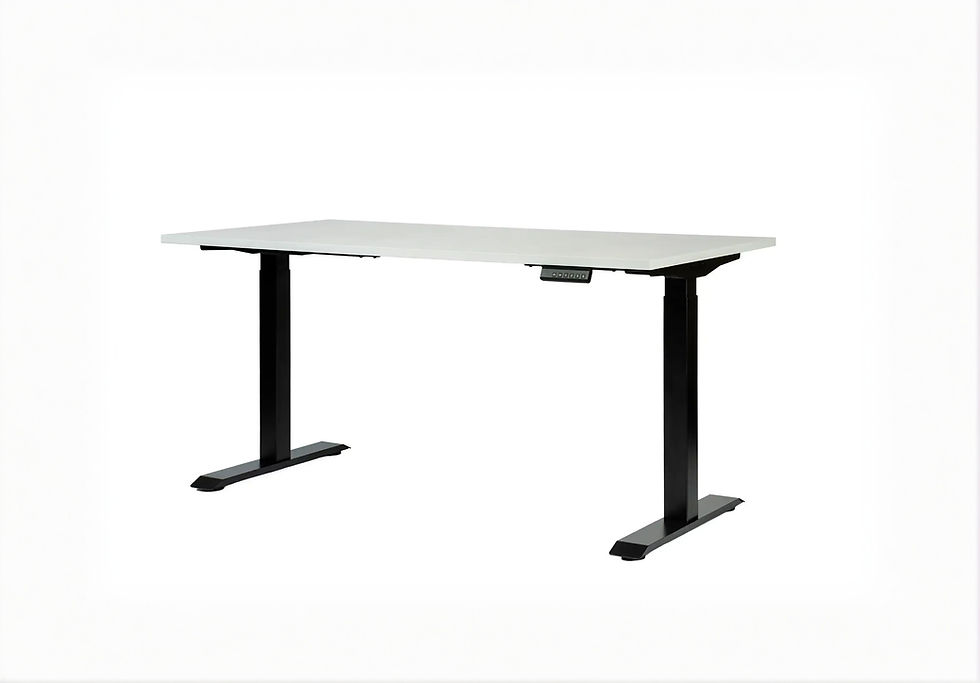
Step 5: Desk layout and ergonomics
A professional setup should also be comfortable.
Key considerations:
Camera not blocked by monitors
Lights mounted without taking desk space
Mic arms or mounts that don’t interfere with work
Comfortable seating posture
Clean desk layout improves both video quality and daily productivity.
For a cleaner setup, use proper webcam mounts, tripods & desk arms to keep the camera stable and positioned correctly.
Recommended setups by use case (2026)
Minimal professional setup
Best for: daily remote work, meetings.
Good webcam
One key light
Headset or USB mic
Clean background
Simple, effective, reliable.
Advanced professional setup
Best for: client calls, presentations, frequent meetings.
Webcam or camera
Key + fill light
USB mic on boom arm
Intentional background
Balanced quality without studio complexity.
Creator-level setup
Best for: streaming, webinars, recorded content.
Camera with capture card
Multi-light setup
Dedicated microphone
Controlled background lighting
More control, more setup time, maximum polish.
Quick checklist before any important call
Camera at eye level
Face brighter than background
Audio tested (no echo)
Background clean and static
Notifications muted
This 30-second check prevents most problems.
FAQ – How to Build a Professional Video Call Setup at Home (2026)
1. What is the most important part of a professional video call setup?
Lighting. Good lighting improves any camera instantly and makes you look clear, confident, and professional.
2. Do I need an expensive camera for professional video calls?
No. A good webcam with proper lighting and positioning is enough for most professional use cases.
3. Is eye-level camera placement really that important?
Yes. It affects eye contact, posture, and how confident you appear more than camera resolution does.
4. Should I prioritize audio or video upgrades first?
If your audio is poor, fix audio first. Clear sound is more important than perfect video quality.
5. Are virtual backgrounds acceptable for professional meetings?
They’re acceptable if lighting is good, but a real, clean background usually looks more natural and professional.
6. How much space do I need for a good setup?
Very little. Many professional setups fit on small desks using clamp mounts and compact lights.
7. Can I build a professional setup on a budget?
Yes. One light, a decent webcam, and a simple microphone already deliver a professional result.
Final thoughts
A professional video call setup in 2026 is about clarity, comfort, and consistency — not about buying the most expensive gear. Start with camera height and lighting, improve audio next, and keep your background simple.
Small, intentional upgrades make a bigger difference than chasing specs.























Comments